

Data Purge and Retention in rConfig V8 Core
rConfig V8 Core keeps every config it downloads, every change it detects and every log entry it writes. On a busy install that fills the disk and the database. Settings > Data Purge sets how long each kind of data is kept, and a nightly job removes anything older.
Nothing is purged until you turn it on. Every target ships disabled, so upgrading never deletes data on its own.
What can be purged
Section titled “What can be purged”| Target | What it holds | Default retention |
|---|---|---|
configs |
Downloaded config files, their database rows and the change (diff) records that reference them | 1825 days (5 years) |
activity_log |
The activity log shown in the application log pages | 90 days |
tracked_jobs |
The record of manual and scheduled download jobs | 30 days |
job_batches |
Batches created by scheduled download tasks | 14 days |
failed_jobs |
Queue jobs that failed | 7 days |
jobs |
Jobs waiting in the database queue (empty on a standard install, which queues in Redis) | 7 days |
The purge only ever deletes from these targets. It works on age alone: a row or config older than the retention period is removed, everything newer is kept.
Turn on a purge
Section titled “Turn on a purge”- Open Settings > Data Purge (under Data Management).
- To purge configs, set the values in the Config Purge Settings card and switch Enabled on. The card saves as you type.
- To purge another table, open the row’s actions menu in General Data Purge Settings and choose Enable. Choose Edit to change its retention, batch size or frequency, then click the tick to save.
Each row also shows the table’s approximate record count and size on disk, so you can see what is worth purging.
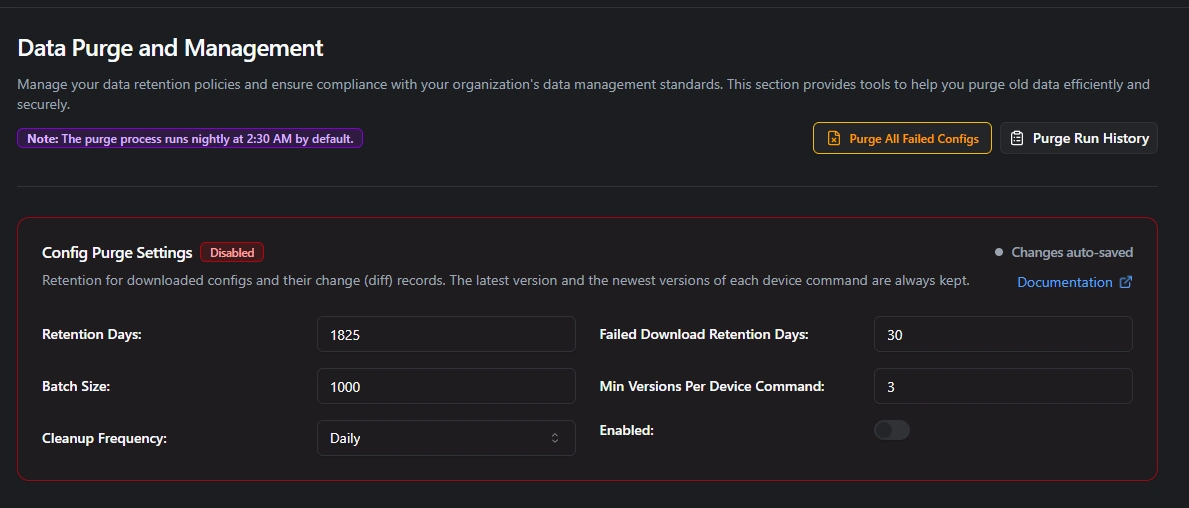 Data Purge page with the Config Purge Settings card, disabled by default
Settings on every target
Section titled “Settings on every target”| Setting | Meaning |
|---|---|
| Retention (Days) | Data older than this is purged. 1 or more. |
| Batch Size | How many rows are deleted per pass. Lower it if the purge slows the database. |
| Frequency | Daily, Weekly (Sundays only) or Monthly (the 1st only). |
| Enabled | Whether the nightly purge touches this target at all. |
Config retention
Section titled “Config retention”Configs are not purged on age alone. For each device and command (for example show running-config on router1), the purge always keeps:
- the latest version, and
- the newest versions up to Min Versions Per Device Command (default 3),
however old they are. Older versions beyond that are deleted once they pass Retention Days. A device that has not changed in ten years keeps its config.
When a config version is purged, rConfig also deletes:
- the config file on disk,
- the change (diff) records that compare that version with its neighbours.
Version numbers are not renumbered, so a device’s history can start at a version higher than 1 after a purge.
Failed Download Retention Days (default 30) is a separate, shorter cutoff for failed download records. These have no minimum-versions protection.
To clear failed downloads straight away, without waiting for the nightly run, click Purge All Failed Configs at the top of the page. It queues the job for every device.
When the purge runs
Section titled “When the purge runs”The scheduler starts the purge every night at 02:30 server time. Small deletes run straight away. A table with a lot to delete is handed to Horizon on the PurgeDataJobs queue and removed in batches, so the purge never blocks downloads.
You can also run it yourself:
cd /var/www/html/rconfig
# Show what would be purged. Nothing is deleted.php artisan rconfig:data-purge --dry-runcd /var/www/html/rconfig
# Purge every enabled target nowphp artisan rconfig:data-purge
# Purge one target onlyphp artisan rconfig:data-purge --table=activity_log
# Delete in this process instead of queueing to Horizonphp artisan rconfig:data-purge --no-queueThe command only purges targets that are enabled, and it respects each target’s frequency. A dry run is the quickest way to check a new retention setting before the nightly run uses it. See rconfig:data-purge for every option.
Purge run history
Section titled “Purge run history”Purge Run History (the button at the top of the Data Purge page) lists every run: when it started and finished, whether it was a dry run, and its status.
| Status | Meaning |
|---|---|
| Success | The run finished. Deletes were done or queued. |
| Completed with errors | The run finished but at least one target failed. Hover over the run to see which. |
| Failed | The run stopped on an error. The message is shown under Source. |
| Running | The run is in progress. |
Hover over a run’s Type to see what it did to each target: records found, records deleted and whether the delete was queued. Filter the list by status or run type, and delete entries you no longer need. Deleting a history entry removes the record only.
Notifications
Section titled “Notifications”After a run that deleted or queued something, or hit an error, rConfig sends one Configuration Purge Completed notification in the app and by email, listing what was purged. A run with nothing to do, and a dry run, send nothing.
Each user can turn the Configuration Purge Completed type on or off in their notification preferences. Purge activity is also written to the activity log.
Troubleshooting
Section titled “Troubleshooting”Nothing is being purged. Check the target is Enabled and its frequency allows a run today, then run php artisan rconfig:data-purge --dry-run to see what each target reports. Confirm the scheduler is running under Settings > Scheduled Tasks.
A run shows as queued but the rows are still there. Large deletes run on Horizon. Check Horizon is running and the PurgeDataJobs queue is being worked. After an upgrade, Horizon must be restarted to pick up the new queue, which update.sh does for you.
Old configs are still there after a purge. The latest version and the newest versions up to Min Versions Per Device Command are always kept, and configs of disabled devices are left alone.
Core and Pro
Section titled “Core and Pro”rConfig Pro purges more data types (policy compliance reports, SNMP data, terminal recordings and others) and adds config history audit and repair. See Data Purge in rConfig Pro (a different edition).