

Network Configuration Backups in rConfig V8 Core
After reading this page, you can explain what configuration and state backups capture, then run them three ways in rConfig V8 Core: manually from the UI, from the CLI, and on an automated schedule. You will also know where backups are stored and how to monitor their execution.
When to use this
Section titled “When to use this”Reach for this page when you need to protect device configurations for change management, disaster recovery, compliance, or security forensics. It covers both the one-off backup you run while troubleshooting a single device and the scheduled tasks that keep your whole inventory backed up without manual effort.
Prerequisites
Section titled “Prerequisites”Before running backups, make sure the following are in place:
- At least one device added to rConfig with valid credentials. See adding and managing devices.
- A command group assigned to each device so rConfig knows which commands to run. See command groups.
- The connectivity and authentication process tested for your devices (a manual download is the quickest way to confirm this).
- For scheduled backups, permission to create tasks in your rConfig role.
Why configuration backups matter
Section titled “Why configuration backups matter”Configuration backups are the foundation of rConfig’s value. Whether you are archiving device states for compliance or building a disaster recovery baseline, knowing how to run and automate backups keeps your network infrastructure protected and auditable.
rConfig provides multiple methods to start configuration backups, from manual device-level backups for immediate needs to fully automated task-based scheduling for hands-free operations. Every backup follows the same robust connectivity and authentication process, so results stay consistent regardless of how the backup is triggered.
Change management
Section titled “Change management”Track every configuration change with before and after configuration comparison. When something breaks after a change window, you know exactly what changed and can roll back if needed.
Disaster recovery
Section titled “Disaster recovery”Device dies at 3 AM? Restore the exact configuration from last night’s backup. Hardware replacement becomes a config restore operation, not a rebuild-from-memory emergency.
Compliance and audit
Section titled “Compliance and audit”Regulators want proof of configuration standards? Generate configuration compliance reports showing config compliance over time. Demonstrate who changed what and when with complete audit trails.
Security forensics
Section titled “Security forensics”Suspicious network behaviour? Compare current configs against known-good baselines to identify unauthorised changes, rogue access rules, or compromised credentials.
Documentation
Section titled “Documentation”Your configs are your documentation. When onboarding new team members or troubleshooting legacy setups, backed-up configurations provide the ground truth.
Backup types
Section titled “Backup types”Configuration backups
Section titled “Configuration backups”What: captures device running configurations, the active settings that define how the device operates.
Commands: show running-config, display current-configuration, show configuration
Use cases:
- Rollback and recovery
- Compliance validation
- Configuration standardisation
Frequency: daily or after every change window.
State backups
Section titled “State backups”What: captures operational state information alongside configurations (version details, interface status, routing tables, ARP entries, hardware inventory).
Commands: show version, show ip interface brief, show ip route, show inventory
Use cases:
- Troubleshooting and forensics
- Pre and post-change validation
- Capacity planning data
- Hardware inventory tracking
Frequency: daily or on-demand during troubleshooting.
Combined approach (recommended)
Section titled “Combined approach (recommended)”Most production deployments back up both configuration and state data. Create command groups that include:
- Primary config command (
show running-config) - Version and hardware details (
show version) - Interface status (
show ip interface brief) - Routing information (if applicable)
This gives you complete snapshots useful for both recovery and analysis.
Backup features
Section titled “Backup features”Backup storage
Section titled “Backup storage”All backed-up configurations are stored in a hierarchical directory structure organised by category, device name, and date.
Storage path example:
/storage/app/rconfig/data/ └── [Category Name]/ └── [Device Name]/ └── [YYYY]/ └── [MMM]/ └── [DD]/ └── [command-name]_[timestamp].txtExample:
/storage/app/rconfig/data/ └── Core-Routers/ └── router-hq-01/ └── 2026/ └── Oct/ └── 02/ └── show-running-config_143522.txtEvery backup has a record in the database that references the file along with other data.
How to run backups
Section titled “How to run backups”1. Manual device backup (UI)
Section titled “1. Manual device backup (UI)”Best for: immediate backup of a single device for troubleshooting or verification.
- Navigate to Devices and open the device you want to back up.
- Click the Download Now button.
- Wait for the job to complete.
- View the backed-up config in the device history.
When to use:
- Testing connectivity to new devices
- Capturing config immediately after a manual change
- Troubleshooting backup issues
- Verifying command templates work correctly
2. Manual device backup (CLI)
Section titled “2. Manual device backup (CLI)”Best for: scripting, automation, remote operations, or debugging connection issues.
Download a single device:
php artisan rconfig:download-device {device_id}Examples:
# Backup device ID 1001php artisan rconfig:download-device 1001
# Backup with debug output (shows detailed connection info)php artisan rconfig:download-device 1001 -d
# Search by integration host ID (for synced devices)php artisan rconfig:download-device 1001 -i
Download multiple devices:
php artisan rconfig:download-device 1001 1002 1003Download by category:
# Backup all devices in category ID 5php artisan rconfig:download-category 5
# Multiple categoriesphp artisan rconfig:download-category 5 6 7
Download by tag:
# Backup all devices with tag ID 10php artisan rconfig:download-tag 10See the full CLI command reference
3. Scheduled task-based backups
Section titled “3. Scheduled task-based backups”Best for: production operations, automated daily or weekly backups, hands-free configuration management.
Scheduled tasks are the primary backup method for production environments. Tasks define:
- When backups run (schedule with time and frequency)
- What gets backed up (device selection via categories, tags, or specific devices)
- Which commands execute (command groups assigned to devices)
Task types for configuration backups
Section titled “Task types for configuration backups”rConfig supports multiple task types for different backup scenarios:
| Task Type | Description | Configuration |
|---|---|---|
| Config Downloads - Devices | Backup specific selected devices | Select individual devices |
| Config Downloads - Categories | Backup all devices in selected categories | Select one or more categories |
| Config Downloads - Tags | Backup all devices with selected tags | Select one or more tags |
Additional task types are available for policy compliance, snippet deployment, system maintenance, and integrations. See the scheduled tasks documentation for the complete list.
Create a scheduled backup task
Section titled “Create a scheduled backup task”- Navigate to Tasks and click Create Task.
- Select the task type: choose “Config Downloads - Devices”, “Categories”, or “Tags” based on your needs.
- Enter the basic settings:
- Task Name: for example “Daily Core Network Backup”
- Description: for example “Backs up all core routers and switches daily”
- Enabled: tick to make the task active
- Run on Save: optional, runs immediately when you save
- Configure the schedule:
- Frequency: select from the dropdown (Every Minute, Hourly, Daily, Weekly, Monthly)
- Time: set a specific time such as 02:00 for Daily, Weekly, or Monthly tasks
- Time Zone: select your local timezone
- Day of Week: for weekly tasks, select the day or days
- Day of Month: for monthly tasks, select the date
- Select the devices (varies by task type):
- For Devices: select specific devices from the list
- For Categories: select one or more categories (for example “Core Routers”, “Distribution Switches”)
- For Tags: select one or more tags (for example “Production”, “Critical Infrastructure”)
- Click Save Task.
The task now appears in the Tasks main view and runs automatically at the scheduled intervals.
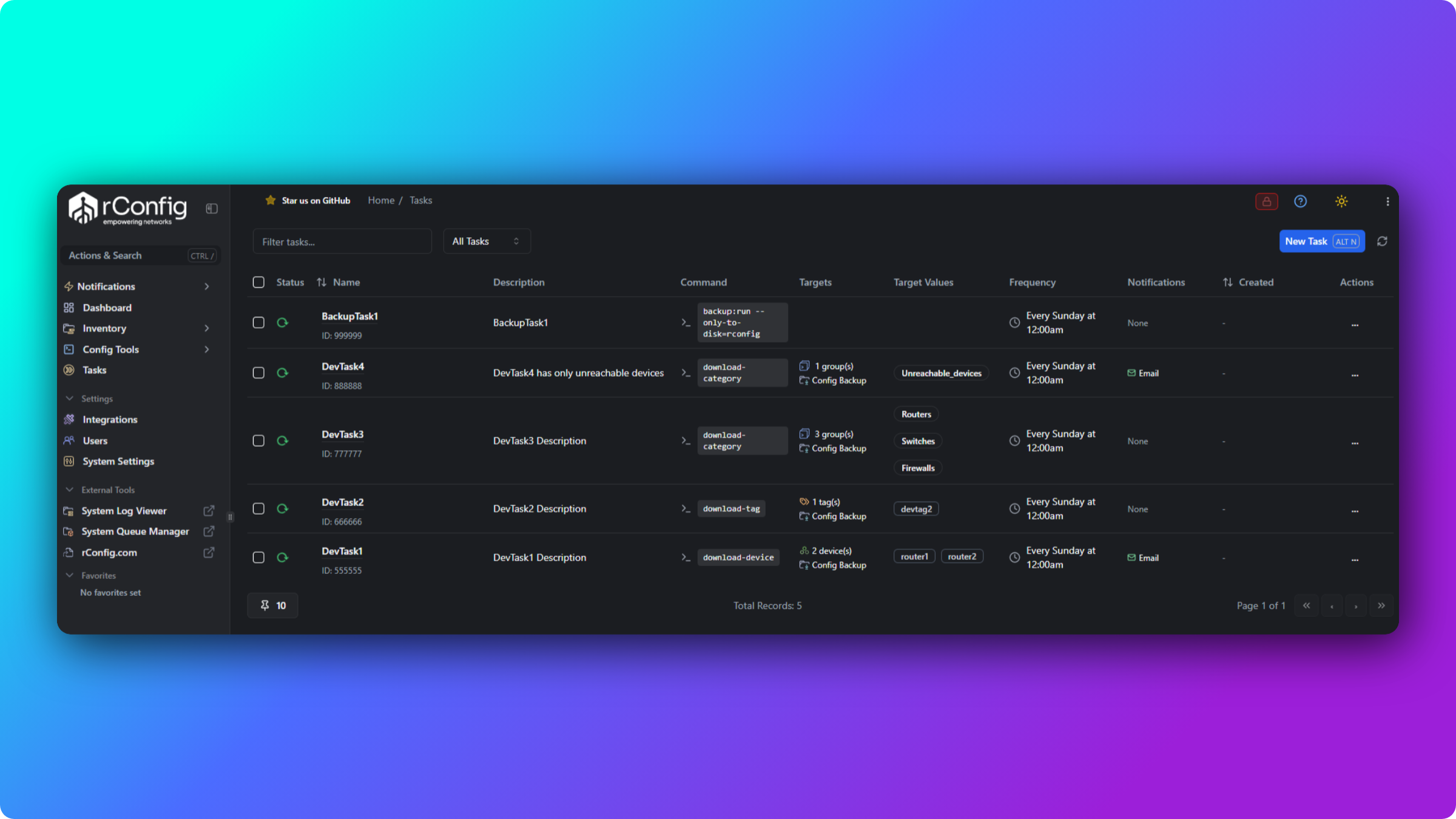
Manage tasks
Section titled “Manage tasks”To run a task manually:
- Navigate to the Tasks main view.
- Click the Run Now button next to the task.
- Monitor progress in the Horizon Queue Manager.
To pause or resume a task:
- Click the Pause icon to temporarily disable a task without deleting it. Paused tasks do not execute on schedule.
- Click Resume to re-enable it.
To edit a task:
- Click the task name or the edit icon.
- Modify the schedule, devices, or settings.
- Save your changes.
To delete a task:
- Click the delete icon.
- Confirm the deletion. The task schedule and configuration are permanently removed.
Task best practices
Section titled “Task best practices”Stagger backup windows. Do not back up 1000 devices at 2:00 AM exactly. Use:
- Different times for different categories
- Multiple tasks with offset schedules
- Progressive scheduling (core at 2 AM, access at 3 AM, branch at 4 AM)
Monitor task execution:
- Check the Horizon Queue Manager for real-time job status
- Review the application logs for backup failures
- Set up notifications for failed backups
- Regularly review paused or disabled tasks
Test before production:
- Create a test task with 5 to 10 devices
- Verify all devices back up successfully
- Check configurations are captured correctly
- Then scale to your full device inventory
Use appropriate task types:
- By Category: best for organisational structure (Core, Distribution, Access)
- By Tag: best for logical grouping (Production, DR, Critical)
- By Device: best for small, specific device sets or exceptions
Common gotchas
Section titled “Common gotchas”Backup execution details
Section titled “Backup execution details”What happens during a backup
Section titled “What happens during a backup”Regardless of how the backup is triggered, the execution flow is consistent:
- Job queued in the Horizon queue system
- Device connection established per the connectivity process
- Commands executed from the assigned command group
- Output captured with pagination handling
- CIC definitions run (if configured) to extract properties
- Configuration processed (cleaned, validated)
- File stored in the hierarchical directory structure
- Database record created with metadata
- Default status evaluated and recorded
- Notifications sent (if configured for failures or specific events)
- Activity logged with full details
Storage location
Section titled “Storage location”Configurations are stored following this structure:
/storage/app/rconfig/data/ └── [Category Name]/ └── [Device Name]/ └── [YYYY]/ └── [MMM]/ └── [DD]/ └── [command-name]_[timestamp].txtExample:
/storage/app/rconfig/data/ └── Core-Routers/ └── router-hq-01/ └── 2026/ └── Oct/ └── 02/ └── show-running-config_143522.txtMonitoring backup operations
Section titled “Monitoring backup operations”Horizon Queue Manager
Section titled “Horizon Queue Manager”View real-time backup job status:
- Navigate to External Tools → System Queue Manager to open the Horizon Queue Manager.
- Monitor the job states:
- Pending jobs: queued and waiting
- Processing jobs: currently executing
- Completed jobs: successful backups
- Failed jobs: errors requiring attention
Application logs
Section titled “Application logs”For detailed backup history and troubleshooting:
- Navigate to System Settings → Monitoring & Debugging → Application Logs. See the application log documentation for full detail.
- Filter by:
- Device name
- Date range
- Success or failure status
- Specific commands
- View detailed logs showing connection attempts, authentication results, command execution, errors and warnings, and execution time.
Notifications
Section titled “Notifications”Configure alerts for backup events.
Email notifications:
- Failed backups
- First-time device backups
- Configuration changes detected
- Daily or weekly summary digests
Webhook notifications:
- POST to external systems (Slack, Teams, PagerDuty)
- Custom integrations with ticketing systems
- Real-time change notifications
Best practices
Section titled “Best practices”Production deployment
Section titled “Production deployment”Start small, scale gradually:
- Test with 10 devices across different vendors
- Validate command templates work correctly
- Verify storage
- Add more devices in batches
Schedule strategically:
- Avoid peak traffic hours
- Stagger backups across categories
- Consider maintenance windows
- Account for time zones in global deployments
Monitor and adjust:
- Review failed backups weekly
- Optimise command timeouts based on device response times
- Adjust concurrent connection limits for network capacity
- Archive old configurations per retention policy
Security considerations
Section titled “Security considerations”Credential management:
- Use credential sets for shared access
- Rotate passwords regularly
- Implement key-based SSH authentication
- Never log credentials in plaintext
Access control:
- Restrict backup initiation to authorised users
- Use RBAC to control device access
- Audit who triggers manual backups
- Monitor API token usage
Encryption:
- Enable configuration file encryption at rest
- Use TLS for API communications
- Secure credential storage with encryption keys
- Implement filesystem-level encryption
Performance optimisation
Section titled “Performance optimisation”Concurrent connections:
- Default: 10 simultaneous connections
- Adjust based on network capacity
- Consider device CPU and memory limitations
- Monitor queue depth
Command optimisation:
- Only back up commands you need
- Avoid expensive commands (full routing tables) unless necessary
- Use
| no-moreor the equivalent to disable pagination - Test command response times before production
Storage management:
- Implement retention policies (keep 90 days, 1 year, and so on)
- Use compression for archived configs
- Monitor disk space usage
What’s next
Section titled “What’s next”- Compare configuration versions with config diffs to see exactly what changed between backups.
- Create and schedule tasks to automate backups across your full device inventory.
- Generate configuration compliance reports to demonstrate config standards over time.