

Configure Device Commands in rConfig V8 Core
Commands are the instructions rConfig V8 Core sends to a network device during a backup, with each command’s output captured and stored for change tracking and reporting. After reading this page you can create single commands and command sets, control their behaviour with the three configuration toggles, and bulk-assign commands to Command Groups.
When to use this
Section titled “When to use this”Use this page when you are building out what rConfig retrieves from your devices: adding a show running-config, grouping several show commands into one capture, or tuning whether a command saves unchanged output and sends change notifications. Set commands up once and every backup that runs the parent Command Group uses them.
Prerequisites
Section titled “Prerequisites”- Administrative access to rConfig V8 Core
- Knowledge of the command syntax used by your network equipment
- At least one Command Group to assign the command to
What is a command in rConfig?
Section titled “What is a command in rConfig?”A command is more than a text string sent to a device. Each one is a configured entity with its own behaviour and processing rules. When rConfig runs a backup it sends each command in turn and captures the output for storage and comparison.
Commands come in two forms:
- Single commands retrieve one piece of information, such as
show ip int brieforshow version. - Command sets combine multiple commands separated by line breaks. rConfig sends each line in sequence and writes all of the output to a single configuration file.
Why command configuration matters
Section titled “Why command configuration matters”How you configure a command affects three things:
- Storage efficiency. The Keep Unchanged Config toggle saves a file only when the output changes, which reduces disk and database growth in stable networks.
- Change detection accuracy. Compare Options and diff exclusions keep benign noise (timestamps, counters) out of your diffs so real changes stand out.
- Notification relevance. The Change Notifications toggle sends alerts only for the commands you choose, which avoids alert fatigue.
Command types and examples
Section titled “Command types and examples”| # | Type | Command | Notes |
|---|---|---|---|
| 1 | Single command | show ip int brief | Standard single command. Must be unique, 3 to 255 characters. Special characters including pipes are supported. |
| 2 | Command set | show clock\nshow version | Multiple commands separated by line breaks. All output is written to a single configuration file. Use this when commands are logically related or grouping reduces connection overhead. |
| 3 | Command with pipe | show running-config | section interface | Pipes and filters are fully supported, useful for retrieving a specific configuration section. |
Command sets vs individual commands
Section titled “Command sets vs individual commands”Use a command set when the commands retrieve related information, run together in your normal procedures, and their output is fine to store and compare as one file.
Use individual commands when different commands need different Compare Options, when only some commands need the CIC, or when change notifications should fire independently per command.
Add or edit a command
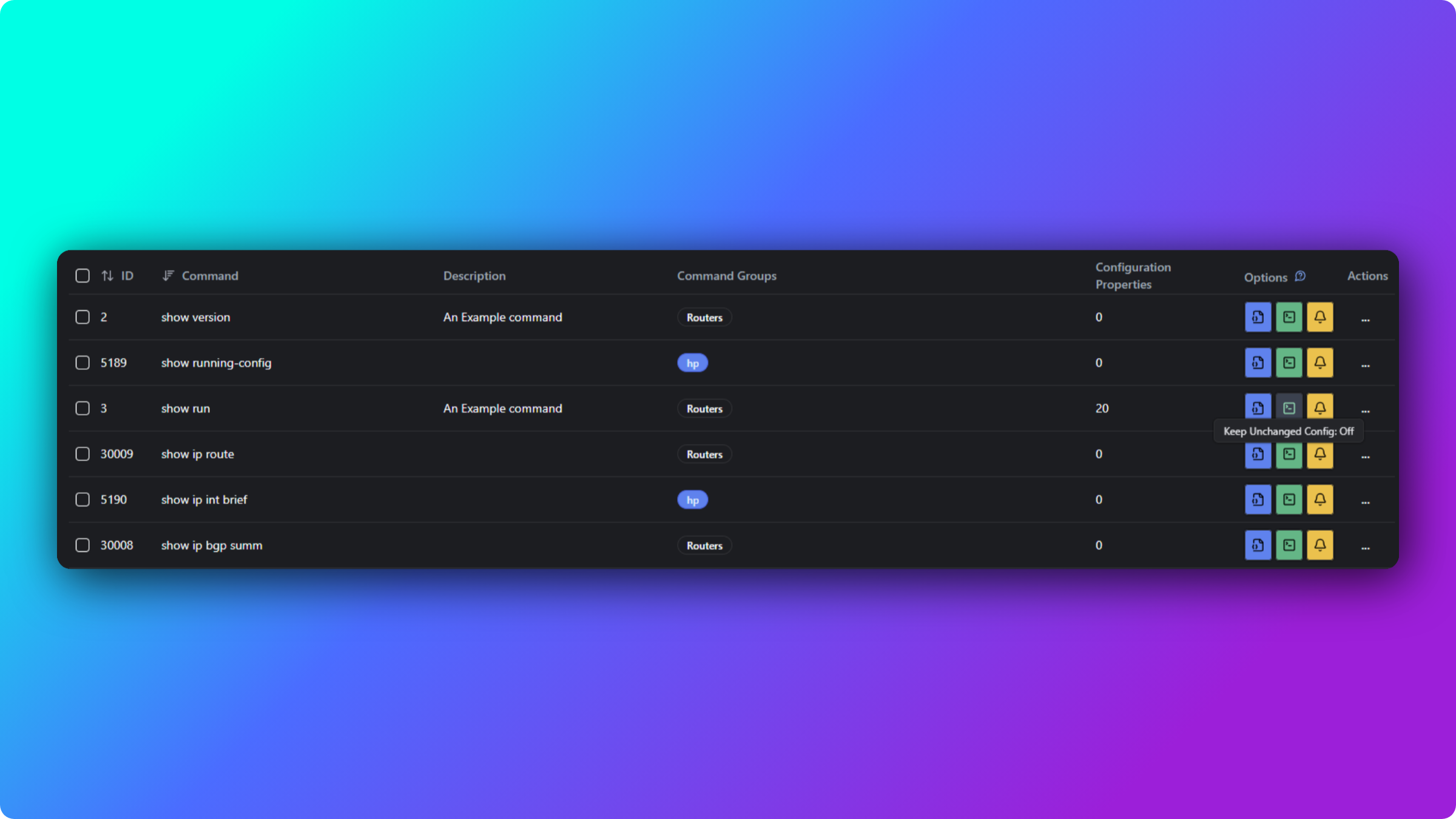
Section titled “Add or edit a command”- Navigate to Inventory -> Commands in the main menu.
- Click Add Command.
- Enter the command string in the Command field.
- Assign the command to one or more Command Groups.
- Set the configuration toggles for this command (see below).
- Save the command.
After saving, confirm the command appears in the commands table and is associated with the correct Command Group, then run a device backup to verify rConfig captures the output.
Command configuration toggles
Section titled “Command configuration toggles”Each command has three toggles that control how rConfig treats its output. They appear on the command form when you add or edit a command.
CIC (Configuration Integrity Check)
Section titled “CIC (Configuration Integrity Check)”When enabled, rConfig runs a Configuration Integrity Check on the command output to confirm a complete, valid configuration was retrieved rather than a partial capture or an error response. Enable it on the commands that pull your core running or startup configuration, where a truncated capture would matter most.
Keep Unchanged Config
Section titled “Keep Unchanged Config”When enabled, rConfig writes a new configuration file on every backup even if the output is identical to the previous run. When disabled, rConfig saves a new file only when the output changes, which can sharply reduce storage in networks where most devices rarely change.
Change Notifications
Section titled “Change Notifications”When enabled, rConfig sends an email notification when the command output changes compared to the previous backup. Enable it for security-sensitive or compliance-critical commands where a change needs immediate attention. Leave it disabled for commands whose output changes routinely, such as interface counters, to avoid alert fatigue.
Bulk assign commands
Section titled “Bulk assign commands”When you manage many commands across several Command Groups, bulk assignment lets you attach multiple commands to one or more groups in a single action.
- Navigate to Inventory -> Commands.
- Select the commands to assign using the row checkboxes.
- Click the Bulk Assign action.
- Choose the target Command Group or Groups.
- Confirm the assignment, then verify the selected commands appear in the target groups.
Command syntax guidelines
Section titled “Command syntax guidelines”Single command:
show running-configCommand set:
show clockshow versionshow interfacesCommand with pipe:
show running-config | section interfaceRequirements:
- Minimum length 3 characters, maximum 255 characters
- Must be unique within the rConfig installation
- Special characters and pipes are supported
What’s next
Section titled “What’s next”- Set up Command Groups to bundle commands for backups
- Configure diff exclusions to filter noise from your comparisons before enabling Change Notifications
- Review configuration diffs to confirm your commands capture meaningful changes