

Scheduled Tasks in rConfig V8 Core
After reading this page, I can schedule recurring configuration backups in rConfig V8 Core, target them by device, category, or tag, run them on demand, and monitor their execution through the queue manager and logs.
Scheduled Tasks automate recurring configuration backups so rConfig captures device configs at set intervals without manual intervention. In V8 Core, tasks centre on Config Download backups: you pick what to back up (individual devices, a category, or a tag), set when it runs with a cron schedule, and rConfig handles the rest in the background.
When to use this
Section titled “When to use this”Use Scheduled Tasks when you want consistent, hands-off configuration capture: nightly backups of your estate, hourly snapshots of critical infrastructure, or weekly captures of lab gear. If you only need a one-off backup, run the download manually from the device view instead of creating a schedule.
Prerequisites
Section titled “Prerequisites”Before creating a scheduled task, confirm the following:
- Devices are added and reachable in rConfig. See adding and managing devices.
- The Laravel scheduler cron entry is installed on the rConfig server (covered in the installation guide).
- The queue worker is running so queued tasks are processed. Check the Horizon Queue Manager.
- Categories or tags exist if you plan to target groups of devices rather than individual ones. See device tags.
What Scheduled Tasks provide in V8 Core
Section titled “What Scheduled Tasks provide in V8 Core”V8 Core scheduling focuses on configuration backups (Config Downloads). A task can target:
- Individual devices, for precise control over high-value infrastructure.
- A device category, so every device in that category is backed up together.
- A tag, so logically grouped devices (for example, all core routers) back up on one schedule.
Each task runs on a cron schedule, executes the commands configured for its target devices, and stores timestamped configuration files for versioning and comparison.
How tasks execute
Section titled “How tasks execute”rConfig uses Laravel’s task scheduler and queue system:
- The scheduler evaluates task schedules every minute and queues any task that is due.
- The queue system processes queued tasks through the Horizon queue manager, giving visibility into execution status.
- Tasks run asynchronously in the background, so they never block the web interface.
- Every execution is logged for audit trails and troubleshooting.
This design keeps task execution reliable during busy periods, with automatic retries for transient failures.
Open the Scheduled Tasks view
Section titled “Open the Scheduled Tasks view”- Navigate to Tasks → Scheduled Tasks.
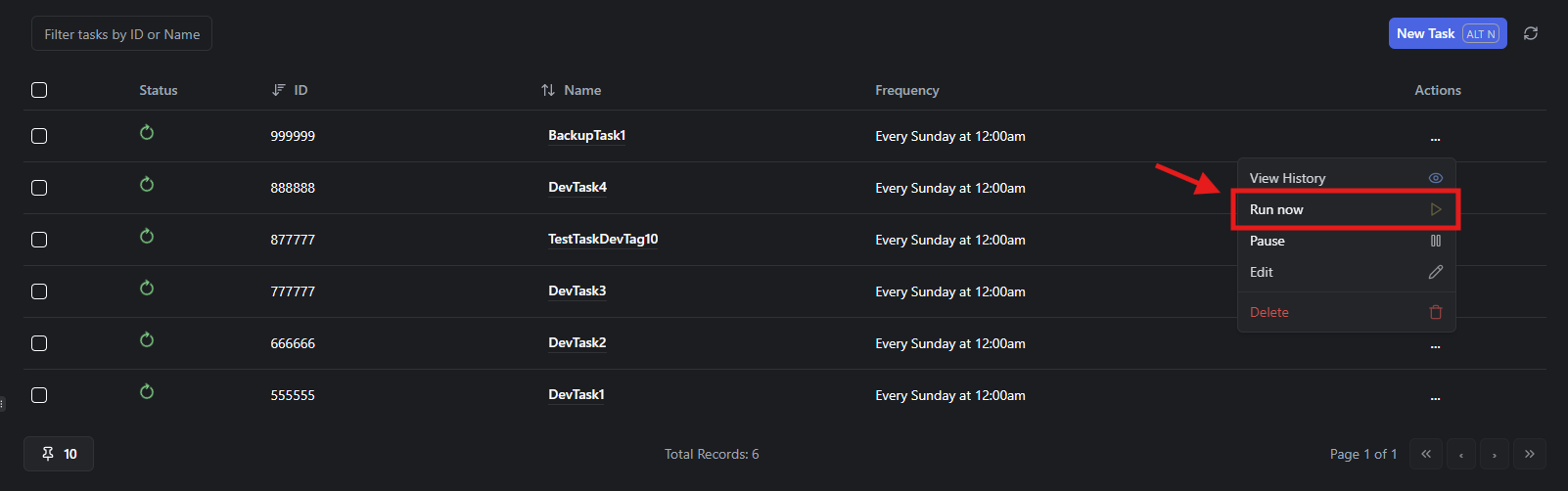
- Review the task list, which shows each task’s schedule, last execution time, and status.
Run a task on demand
Section titled “Run a task on demand”Run any task immediately without waiting for its scheduled time:
- Locate the task in the list.
- Click Run Now next to it.
- Watch progress and results in the Horizon Queue Manager, which shows real-time status, completion details, and failure information.
Manual runs are useful for testing newly created tasks, taking an on-demand backup before maintenance, or running outside the normal schedule.
Add a scheduled task
Section titled “Add a scheduled task”- Click Add Task.
- Select the task type (Config Downloads by device, category, or tag).
- Configure the schedule using a cron expression or the visual scheduler.
- Select the targets (devices, categories, or tags) for the task type you chose.
- Configure any task-specific options.
- Save and enable the task.
- Click Run Now to confirm the task executes correctly before relying on the schedule.
Config Download task types
Section titled “Config Download task types”| # | Task type | What it backs up | Configuration options |
|---|---|---|---|
| 1 | Config Downloads, Devices | Selected individual devices | Choose specific devices, set schedule |
| 2 | Config Downloads, Categories | Every device in a category | Choose categories, set schedule |
| 3 | Config Downloads, Tags | Every device carrying a tag | Choose tags, set schedule |
For all three, rConfig runs the commands configured for the target devices and stores each configuration file with a timestamp for versioning. A practical pattern is hourly backups for critical devices, daily for standard infrastructure, and grouping by change frequency using tags. Stagger backup times to distribute system load.
Configure the schedule
Section titled “Configure the schedule”Cron expression format
Section titled “Cron expression format”rConfig uses standard cron syntax:
* * * * *│ │ │ │ ││ │ │ │ └─ Day of week (0-7, where 0 and 7 are Sunday)│ │ │ └─── Month (1-12)│ │ └───── Day of month (1-31)│ └─────── Hour (0-23)└───────── Minute (0-59)Common schedule examples
Section titled “Common schedule examples”| Schedule | Cron expression | Description |
|---|---|---|
| Every hour | 0 * * * * | At minute 0 of every hour |
| Daily at 2 AM | 0 2 * * * | 2:00 AM every day |
| Every 6 hours | 0 */6 * * * | At 00:00, 06:00, 12:00, 18:00 |
| Weekdays at 9 AM | 0 9 * * 1-5 | 9:00 AM Monday through Friday |
| Weekly on Sunday | 0 3 * * 0 | 3:00 AM every Sunday |
| Monthly on 1st | 0 4 1 * * | 4:00 AM on the 1st of each month |
| Every 15 minutes | */15 * * * * | At minutes 0, 15, 30, 45 |
Scheduling best practices
Section titled “Scheduling best practices”- Stagger execution. Avoid scheduling several resource-intensive tasks at the same time, so you do not overload the server.
- Account for timezone. Schedules run in the rConfig server’s timezone. Allow for daylight saving changes where relevant.
- Match change windows. If changes typically happen during business hours, schedule evening backups to capture them.
- Allow time to finish. If a backup takes two hours, do not schedule it hourly.
- Verify the first runs. Monitor the first few scheduled executions to confirm tasks fire at the expected times.
Pause, edit, and delete tasks
Section titled “Pause, edit, and delete tasks”Pause a task
Section titled “Pause a task”Temporarily disable a task without deleting its configuration:
- Navigate to Tasks → Scheduled Tasks.
- Toggle the pause control on the task.
- Toggle it again to resume on the normal schedule.
Pausing is useful during maintenance windows, while troubleshooting device connectivity, during major network changes (to avoid capturing transient configs), or when system resources are constrained.
Edit a task
Section titled “Edit a task”- Navigate to Tasks → Scheduled Tasks.
- Click Edit on the task.
- Update the schedule, targets, or options.
- Click Save. Changes take effect on the next scheduled run.
Test significant changes with Run Now before relying on the schedule.
Delete a task
Section titled “Delete a task”- Navigate to Tasks → Scheduled Tasks.
- Click Delete on the task.
- Confirm the deletion.
How device organisation changes affect tasks
Section titled “How device organisation changes affect tasks”- Tag deletion. Deleting tags does not affect devices directly, but tasks configured for those tags will fail to find targets. Before deleting a tag, update affected tasks to use a different tag, target devices or categories directly, or delete tasks that are no longer needed.
- Category changes. Devices moved out of a category are no longer captured by category-based tasks. Audit scheduled tasks after significant category restructuring.
- Device deactivation. Deactivated devices are excluded from scheduled tasks automatically, even if they remain in a targeted category or tag. This prevents tasks from attempting connections to unavailable devices.
Monitor task execution
Section titled “Monitor task execution”Horizon Queue Manager
Section titled “Horizon Queue Manager”View real-time task execution status in the Horizon Queue Manager:
- Open the queue manager from External Tools → System Queue Manager.
- Review active, pending, and completed jobs.
- Check job metrics: execution time, success rate, and failures.
- Examine failed jobs for error details.
Horizon surfaces real-time job processing, detailed error messages, retry history, and queue performance metrics.
Application logs
Section titled “Application logs”- Navigate to Settings → System Settings → Application Logs.
- Filter by task name or device.
- Review entries for task start, completion, and errors.
Logs record execution timestamps, target devices or groups, success or failure status, error messages, and duration. For more detail, see application logs.
Task history
Section titled “Task history”- Navigate to Tasks → Scheduled Tasks.
- Click a task to view its details.
- Review the Last Run timestamp and status, and the Next Run scheduled time.
Troubleshoot scheduled tasks
Section titled “Troubleshoot scheduled tasks”Why isn’t my task running on schedule?
Section titled “Why isn’t my task running on schedule?”Confirm the task is not paused and the cron expression is correct, then verify the Laravel scheduler is active:
# Verify the scheduler cron job existscrontab -l | grep schedule:run
# It should look like:* * * * * cd /var/www/html/rconfig && php artisan schedule:run >> /dev/null 2>&1
If the entry is missing, add it with crontab -e.
Why does my task fail during execution?
Section titled “Why does my task fail during execution?”Tasks that queue but fail show up in Horizon as failed jobs. Check the Horizon error detail and application logs, then work through the common causes:
- Device connectivity. Test the device manually, confirm credentials are current, and check firewall rules.
- Command execution. Verify the commands exist in the device’s command groups and use the correct syntax for the device type.
- Resource constraints. Monitor CPU, memory, and disk during execution; reduce concurrency or add resources if the server is overloaded.
Why do tasks queue but never execute?
Section titled “Why do tasks queue but never execute?”If the queue depth keeps growing, the queue worker is likely stopped:
# Check the queue worker and Horizon statussystemctl status rconfig-workerphp artisan horizon:statusRestart as needed:
systemctl restart rconfig-workerphp artisan horizon:terminate # Supervisor restarts Horizon automaticallyWhy do tasks take too long or overlap?
Section titled “Why do tasks take too long or overlap?”Reduce the scope by splitting large tasks across fewer devices, adjust queue worker concurrency, optimise or trim commands, and stagger schedules so intensive tasks do not run at the same time.
Best practices
Section titled “Best practices”- Start conservative. Begin with longer intervals (daily) and shorten them only as capacity allows.
- Distribute load. Stagger tasks across the day rather than running everything at midnight.
- Name tasks clearly. Use descriptive names such as
Daily-Backup-Core-RoutersorHourly-Backup-Critical-Infra. - Group devices logically. Use categories and tags to simplify task configuration as the estate grows.
- Review regularly. Check application logs and Horizon weekly to catch failure patterns early.
- Keep credentials current. Tasks fail if device credentials change without being updated in rConfig.
What’s next
Section titled “What’s next”- Monitor and manage the queue with the Horizon Queue Manager to watch your scheduled backups run and diagnose failures.
- Review configuration backups to see and compare the configs your tasks capture.
- Organise devices with tags so you can target whole groups from a single scheduled task.