

Search Network Configs in rConfig V8 Core
After reading this page, you can search across every device configuration backup file in rConfig V8 Core using one or more text terms. Configuration Search returns precise matches in seconds, so you can answer audit, security, and change-impact questions without manual grep commands or file-by-file reviews.
When to use Configuration Search
Section titled “When to use Configuration Search”Reach for Configuration Search whenever you need to find which devices contain a specific configuration element, such as an SNMP community, an NTP server, an ACL entry, or a subnet. It replaces ad-hoc grep across the backup tree and supports both current-state and historical lookups. Common scenarios:
- Compliance auditing: An auditor asks which devices have SNMP community
public. Run a search, get the list, then export it and attach it to an audit report. - Security investigations: A reported IP may be compromised. Search for it across all configs to identify every device that references it.
- Change impact analysis: Before decommissioning an NTP server, search for it across all devices to understand the scope of the change.
- Configuration standardization: After rolling out a new logging server, search for its IP to find which devices are not yet configured for it.
- Troubleshooting: When behaviour changes, search for the affected subnet to narrow the investigation from hundreds of devices to the relevant few.
How Configuration Search works
Section titled “How Configuration Search works”The search engine sweeps through configuration files rapidly. Unlike basic grep, it understands the rConfig configuration backup file structure and can filter by device attributes, commands, and time ranges before matching is applied.
Search capabilities:
- Multiple search terms: Add as many terms as you need and choose whether All terms or Any term must match.
- Literal text matching: Terms are matched as literal text, case-insensitive by default. A term like
ip address 10.0.0.1matches that exact text wherever it appears in a config. - Scope filters: Narrow which configs are searched by tag, device, command group (category), and command before term matching runs.
- Historical search: Search all versions or just the latest configs.
- Context lines: Show surrounding lines before and after each match.
- Result limit: Cap how many matching configs are returned so broad searches stay responsive.
Searches complete in seconds for typical deployments (hundreds of devices, thousands of configs). Larger historical searches take longer depending on file quantity.
Prerequisites
Section titled “Prerequisites”- Configuration backups must already exist for the devices you want to search. See Configuration Backups.
- A user account with access to the Config Tools area.
Scope filters (tags, devices, command groups, and commands) are optional. They are most useful once devices are organised with tags and assigned to command groups.
Search interface fields
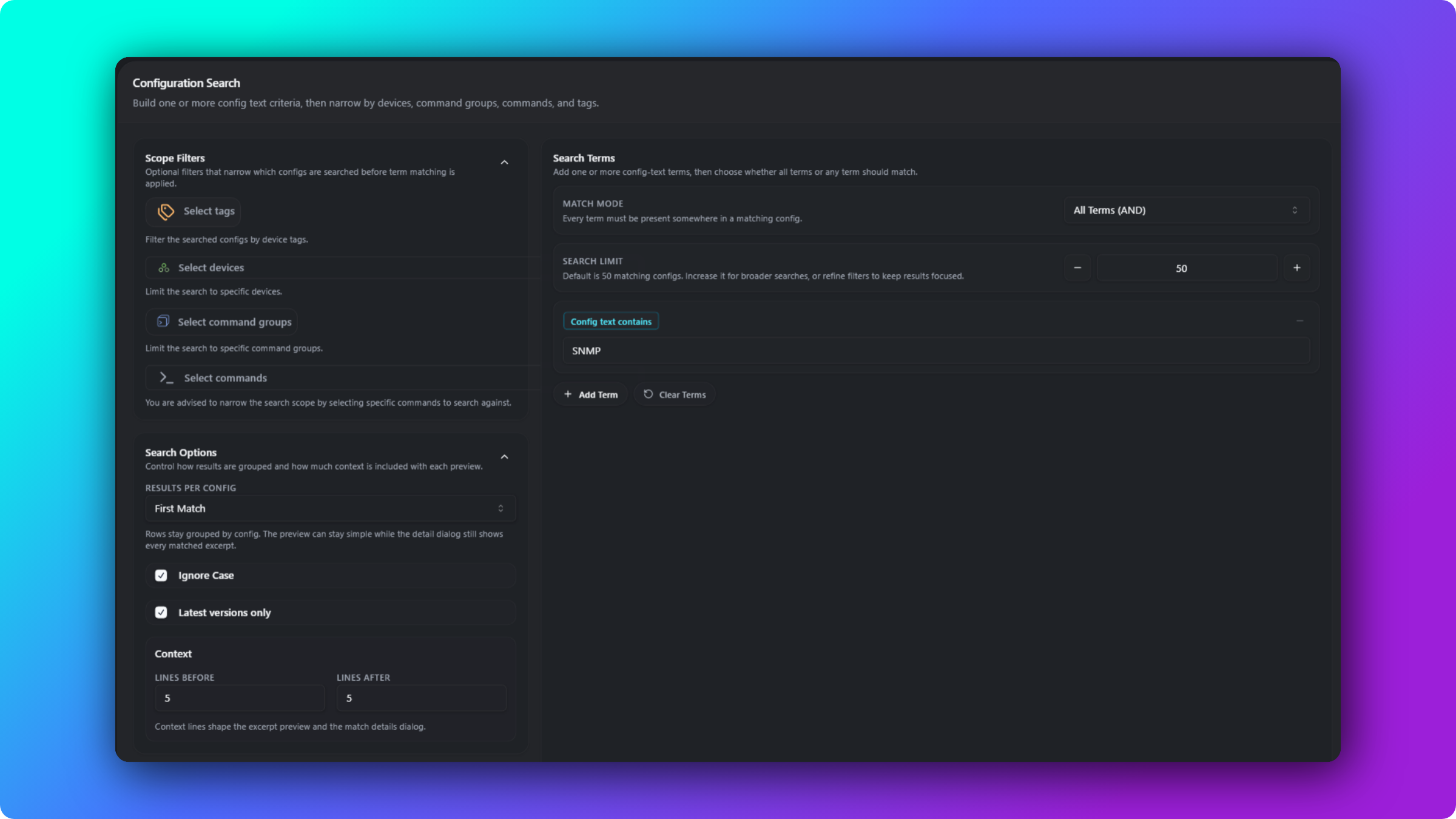
Section titled “Search interface fields”Configuration Search is at Config Tools → Config Search. The form is grouped into Scope Filters, Search Options, Date Range, and Search Terms.
Search Terms (at least one required)
Section titled “Search Terms (at least one required)”Add one or more terms to match against config text. Each term is matched as literal text. Use the Add Term button to add more terms and the minus button on a row to remove one. Examples:
snmp-server community publicfinds SNMP community configuration.ntp server 192.168.1.10finds NTP server references.access-list 100finds a specific ACL.interface GigabitEthernet0/1finds an interface configuration.
Match Mode (All or Any)
Section titled “Match Mode (All or Any)”Control how multiple terms are combined:
- All Terms (AND): A config is returned only when every term appears somewhere in it. Use this to find configs that satisfy several conditions at once, for example both
ntp serverandlogging host. - Any Term (OR): A config is returned when at least one term matches. Use this to find configs that contain any of several variants, for example
community publicorcommunity private.
With a single term, the match mode has no effect.
Scope Filters (optional)
Section titled “Scope Filters (optional)”Narrow which configs are searched before term matching runs. All scope filters are optional, and you can combine them:
- Tags: Limit the search to configs from devices that carry the selected tags.
- Devices: Limit the search to specific devices.
- Command Groups: Limit the search to specific device categories (command groups).
- Commands: Limit the search to specific command outputs, for example
show runonly.
Selecting commands is recommended for precise results, because it avoids searching unrelated outputs such as show version.
Results Per Config (optional)
Section titled “Results Per Config (optional)”Choose how matches are previewed per config:
- First Match (default): The results row shows the first matching line. The match details dialog still shows every matched excerpt.
- All Matches: Emphasise that the row represents all matches for the config.
Either way, rows stay grouped by config and the match count reflects every match found.
Ignore Case (optional)
Section titled “Ignore Case (optional)”Control whether matching is case-insensitive. The default is enabled, so router matches router, Router, and ROUTER. Disable it when:
- Searching for variables or identifiers where case matters.
- Distinguishing between
Router(a hostname) androuter(a command). - Exact matching is required.
Latest Versions Only (optional)
Section titled “Latest Versions Only (optional)”Control whether to search only the most recent configs or all historical versions. The default is enabled (latest configs only), which is the fastest option and returns the current state of devices. Disable it to search all history when:
- Investigating when a configuration element was added or removed.
- Running compliance audits that require historical evidence.
- Performing forensic analysis of configuration drift over time.
Context (Lines Before and After)
Section titled “Context (Lines Before and After)”Show N lines before and after each match for context. The default is 5 lines before and 5 after; set them to 0 for matching lines only. With 3 context lines:
interface GigabitEthernet0/0 description Uplink to Core ip address 10.0.0.1 255.255.255.0 ← Match ip access-group 100 in no shutdownContext helps you understand what surrounds a match, such as interface settings, ACL rules, or routing protocol context. It shapes both the preview and the match details dialog.
Search Limit (optional)
Section titled “Search Limit (optional)”Cap how many matching configs are returned. The default is 50. Increase it for broader searches, or keep it low to stay focused and responsive. When the limit is reached, the results table tells you so, so you can refine your terms or filters or raise the limit.
Date Range (optional)
Section titled “Date Range (optional)”Limit results to configs created within a date range. The default window is the last seven days. Clear it to search across all config dates.
Run a search
Section titled “Run a search”- Add one or more search terms.
- Choose the match mode: All Terms (AND) or Any Term (OR).
- Optionally narrow the scope with tags, devices, command groups, and commands.
- Configure the options: results per config, ignore case, latest versions only, and context lines.
- Optionally set a search limit and a date range.
- Click Search.
- Review the matching configs and highlighted previews in the results.
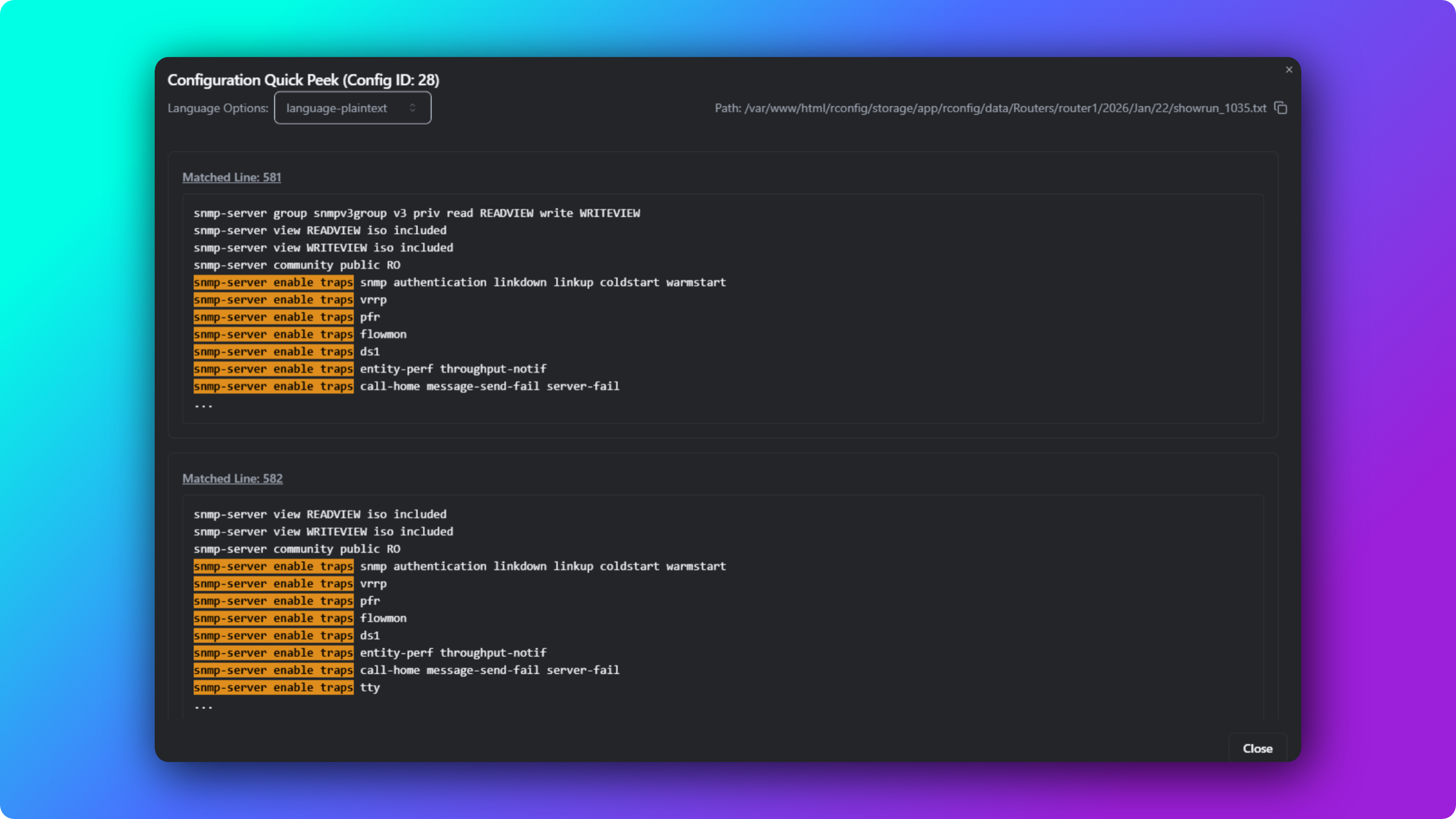
- Click View Matches on a row to read every matched line with its surrounding context.
After a search runs, an active filters bar summarises the current query. Use Edit Filters to refine it and search again, or Clear to start over.
What the results show
Section titled “What the results show”- Device name.
- Command that produced the config.
- Config date.
- Match count per config, with a button to view every match.
- A highlighted preview line, with the matched terms emphasised.
- Actions to peek at the full config or open it in the config editor.
Search examples
Section titled “Search examples”Find all devices with a specific SNMP community
Section titled “Find all devices with a specific SNMP community”Identify devices using SNMP community public for a security audit.
- Search Terms:
snmp-server community public - Match Mode: All Terms
- Commands:
show run - Ignore Case: enabled
- Latest Versions Only: enabled
- Context: 2 before / 2 after
Find devices with a specific NTP server
Section titled “Find devices with a specific NTP server”Find which devices still use a deprecated NTP server before migration.
- Search Terms:
ntp server 192.168.1.10 - Match Mode: All Terms
- Command Groups:
Core Network - Latest Versions Only: enabled
- Context: 0
Find configs that satisfy two conditions (AND)
Section titled “Find configs that satisfy two conditions (AND)”Find configs that reference both a logging host and a specific NTP server, for example to confirm a standard build.
- Search Terms:
logging host 10.0.0.20andntp server 10.0.0.10 - Match Mode: All Terms (AND)
- Latest Versions Only: enabled
- Context: 2 before / 2 after
Find configs matching any of several variants (OR)
Section titled “Find configs matching any of several variants (OR)”Find devices using any non-standard SNMP community.
- Search Terms:
community publicandcommunity private - Match Mode: Any Term (OR)
- Commands:
show run - Latest Versions Only: enabled
Find all configs referencing a network
Section titled “Find all configs referencing a network”Find configs referencing network 10.50. for a decommissioning cleanup.
- Search Terms:
10.50. - Match Mode: All Terms
- Command Groups:
Firewalls - Latest Versions Only: enabled
- Context: 5 before / 5 after
Historical search: when was a BGP neighbor added?
Section titled “Historical search: when was a BGP neighbor added?”Determine when BGP neighbor 10.0.0.5 was added to configs while troubleshooting routing.
- Search Terms:
neighbor 10.0.0.5 - Match Mode: All Terms
- Command Groups:
Core Routers - Latest Versions Only: disabled (search all history)
- Date Range: cleared (search all dates)
- Context: 3 before / 3 after
Best practices
Section titled “Best practices”- Start with one term, then add more. Begin with a single literal term, confirm it returns results, then add terms and switch between All and Any to refine.
- Use scope filters. Narrowing by command group, command, devices, or tags is faster and more precise than searching everything. Filtering to
show runavoids matching unrelated outputs. - Enable context for troubleshooting. Use 3 to 5 context lines to understand the surrounding configuration when investigating issues.
- Keep Latest Versions Only enabled unless you need history. Historical searches are powerful but slow. Disable it only when you specifically need historical data, and clear the date range to widen the window.
- Tune the search limit. Raise it for broad audits, lower it to keep large environments responsive.
- Export results for documentation. Use the results for audit reports, change documentation, team sharing, or offline analysis.
Why isn’t my search returning results?
Section titled “Why isn’t my search returning results?”Check these common causes:
- Typo in a search term. Verify spelling. Terms are matched literally, so the exact characters must appear in the config.
- Match mode too strict. With All Terms (AND), every term must be present. Switch to Any Term (OR) or remove a term to broaden the search.
- Scope filters too narrow. Confirm the selected tags, devices, command groups, or commands actually contain the element.
- Ignore Case disabled. Enable it if you are unsure about case.
- Latest Versions Only enabled. The element may exist only in older backups. Disable it and clear the date range to search history.
- Element does not exist. It may have been removed in a recent backup.
Why is my search slow or hanging?
Section titled “Why is my search slow or hanging?”Slow searches usually come from disabling Latest Versions Only across a large history, or searching a broad scope with hundreds of devices and daily backups. To recover:
- Enable Latest Versions Only if historical data is not needed.
- Narrow the scope with command group, command, device, or tag filters.
- Set a date range to limit how far back the search reaches.
- Lower the search limit so fewer configs are processed.
- Run large searches during off-peak hours.
Quick reference
Section titled “Quick reference”Search field summary
Section titled “Search field summary”| Field | Required | Default | Purpose |
|---|---|---|---|
| Search Terms | Yes | None | One or more literal text terms to find |
| Match Mode | No | All Terms (AND) | Combine terms with AND or OR |
| Tags | No | None | Limit to devices with selected tags |
| Devices | No | None | Limit to specific devices |
| Command Groups | No | None | Limit to specific device categories |
| Commands | No | None | Limit to specific command outputs |
| Results Per Config | No | First Match | How matches are previewed per config |
| Ignore Case | No | Enabled | Match without regard to case |
| Latest Versions Only | No | Enabled | Search only the most recent configs |
| Context | No | 5 / 5 | Lines before and after a match |
| Search Limit | No | 50 | Maximum matching configs returned |
| Date Range | No | Last 7 days | Limit results to a date window |
Common search terms
Section titled “Common search terms”| Goal | Search Term |
|---|---|
| Find an SNMP community | snmp-server community public |
| Find an NTP server | ntp server 192.168.1.10 |
| Find a BGP neighbor | neighbor 10.0.0.5 |
| Find an ACL | access-list 100 |
| Find a VLAN assignment | switchport access vlan 20 |
| Find an interface | interface GigabitEthernet0/1 |
| Find a logging host | logging host 10.0.0.20 |