

rConfig V8 Core User Interface Guide
After reading this page, you can find your way around the rConfig V8 Core interface: the dashboard, the side navigation, keyboard shortcuts, contextual help, filters, favorites, and the user profile settings that control language, timezone, and notifications.
V8 Core user interface overview
Section titled “V8 Core user interface overview”The rConfig V8 Core interface is a complete overhaul from previous versions, built for speed and scalability. For those interested in the technical detail, the UI uses ShadCN/UI components with Tailwind CSS and an updated Vue reactive single-page application for better performance and maintainability.
The main drivers behind the redesign were:
- Faster feature development: a modern component architecture enables rapid iteration and deployment of new capabilities.
- More intuitive experience: streamlined workflows and consistent design patterns reduce the learning curve for new users.
- Enhanced extensibility: a modular foundation makes it easier to integrate additional features and third-party tools.
Dashboard
Section titled “Dashboard”The dashboard provides at-a-glance visibility into your network infrastructure status and recent activity.
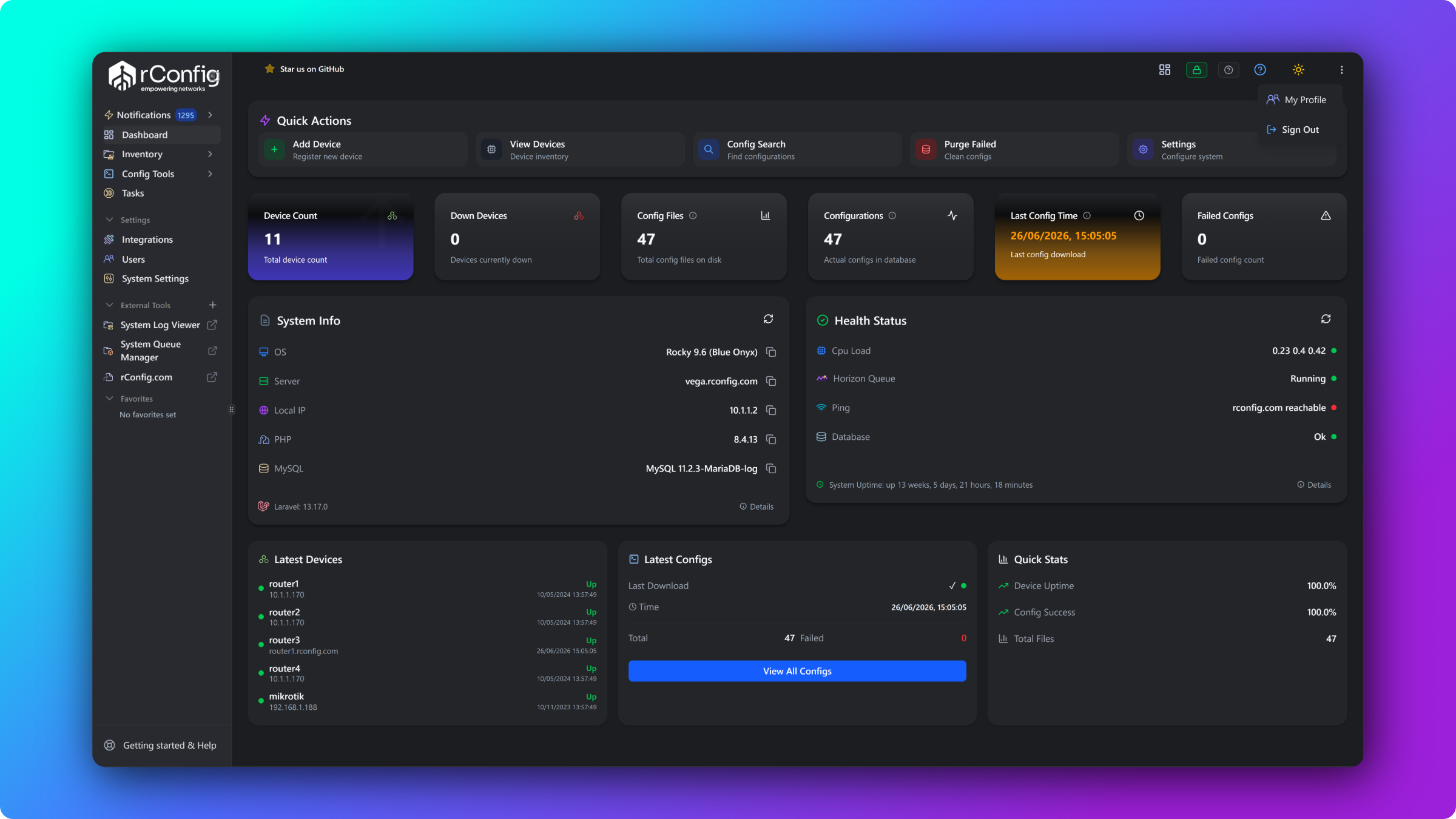
The initial v8.0.0 dashboard is intentionally static. Based on feedback over time, we expect it to become dynamic, giving you control over what you see at an individual user level. The main components today are license and version information, quick-action shortcuts, a set of statistics (number of devices, devices down, configuration count), and system info and system health.
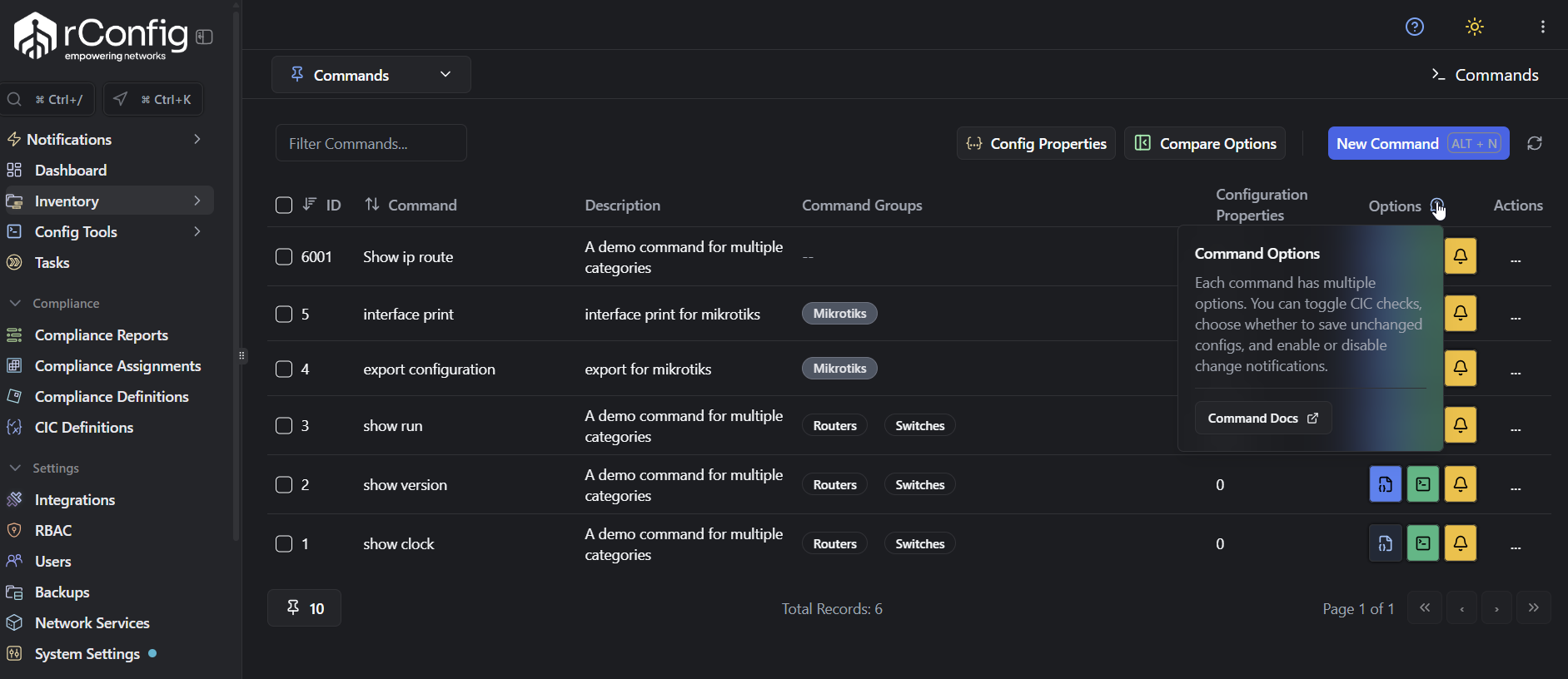
Contextual help icons
Section titled “Contextual help icons”Helper icons appear throughout the application with in-app context. Hover over a help icon to display extra information that guides you through the interface.
Redesigned side navigation
Section titled “Redesigned side navigation”The navigation has been simplified to take up less screen space while giving faster access to key functions. The main sections are Dashboard, Inventory, Config Tools, Tasks, Compliance, Settings, External Tools, and Favorites.
Key navigation features include:
- Collapsible design: minimise the sidebar to maximise your workspace.
- Flyout menus: hover over collapsed sections to reveal sub-navigation options.
- Quick navigation: press
Ctrl+Kto open a command palette and type to jump to any item. - Records search: press
Ctrl+/to open a quick search modal for filtering devices, configs, tasks, and more.
The navigation adapts to your user role, showing only the sections and tools you have permission to access.
Keyboard shortcuts
Section titled “Keyboard shortcuts”rConfig V8 Core introduces keyboard shortcuts for common actions and navigation. The shortcuts appear in tooltips and next to menu items and buttons throughout the interface, so you can learn them as you explore the UI.
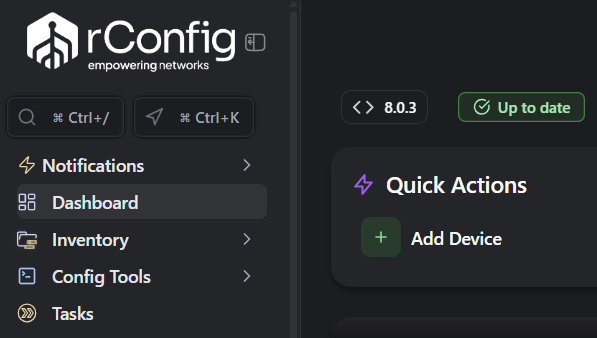
Pay particular attention to the Ctrl+K and Ctrl+/ shortcuts for quick navigation and search, as they significantly reduce the time spent clicking through menus.
Filters and contextual search
Section titled “Filters and contextual search”Most list views now include advanced filtering options and a contextual search bar at the top. This lets you quickly narrow large datasets by criteria such as status, type, and tags. The filters are dynamic and update the list in real time as you adjust them.
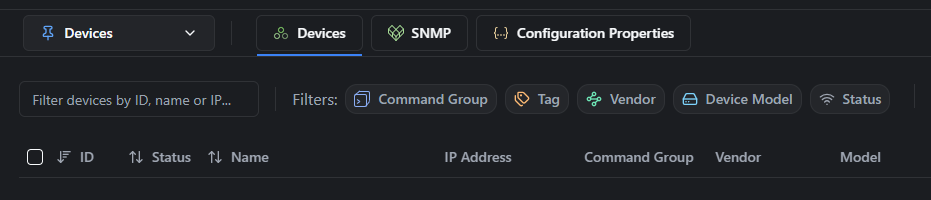
More filters and more advanced filtering options will be added over time based on user feedback.
Favorites workspace
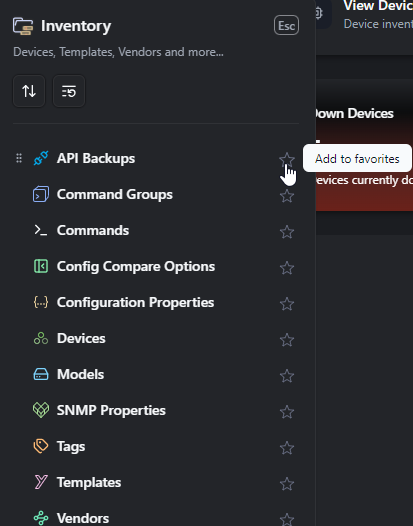
Section titled “Favorites workspace”The Favorites section lets you bookmark frequently used pages, reports, and tools for quick access. Click the star icon next to any item to add it to your favorites list, which is available from the sidebar.
Getting Started sidebar
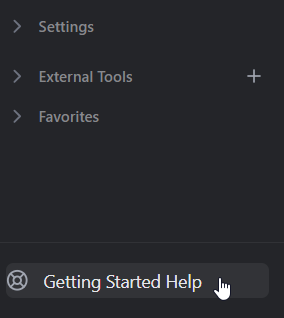
Section titled “Getting Started sidebar”A collapsible Getting Started sidebar provides quick links to common tasks and resources for new users. Toggle this sidebar on or off based on your preference. It sits in the bottom left-hand corner and links directly to support resources, documentation, and tutorials to help you get up to speed quickly.
User profile and localization
Section titled “User profile and localization”The user profile menu in the top-right corner provides access to account settings, preferences, and logout options. The profile settings are organised into three sections.
Personal details
Section titled “Personal details”Update your personal information, including your display name and optional username. Changes are saved manually using the Save Changes button.
Time and locale
Section titled “Time and locale”Customize your regional and time preferences with auto-save:
- Language (experimental): select your preferred interface language from the available options, including English (US). This feature is experimental and may not be fully complete. We welcome community contributions to expand and improve localization.
- Timezone: choose your local timezone for accurate timestamps throughout the application.
- Date format: customize how dates appear (for example, MM/DD/YYYY displays as 12/25/2024).
- Time format: choose between 12-hour and 24-hour display (for example, 24-hour shows as 14:30).
- Locale: your locale setting (for example, en_US) affects how dates, times, and numbers are displayed throughout the application.
Notification preferences
Section titled “Notification preferences”Manage notification settings across multiple channels and event types.
Configure how you receive notifications across these channels:
- In-App: notifications shown in your dashboard.
- Email: sent to your registered email address.
- Slack: posted to configured Slack channels.
You can enable or disable notifications for the following events across any combination of channels.
System and infrastructure
- Notification System Error
- Device Connection Failure (SSH, Telnet, or API)
- Authentication System Changed (LDAP or authentication settings)
Configuration management
- Configuration Changed
- Configuration Download Completed
- Configuration Purge Completed
- Failed Configuration Purge Completed
- Snippet Sent
Operations
- Backup Cleanup Completed
- Backup Run Completed
- Task Completed
- Download Task Report
- Bulk Import Completed
- Bulk Import Failed
Monitoring
- SNMP Trap Received
Compliance
- Compliance Report notifications and summaries
System settings hub
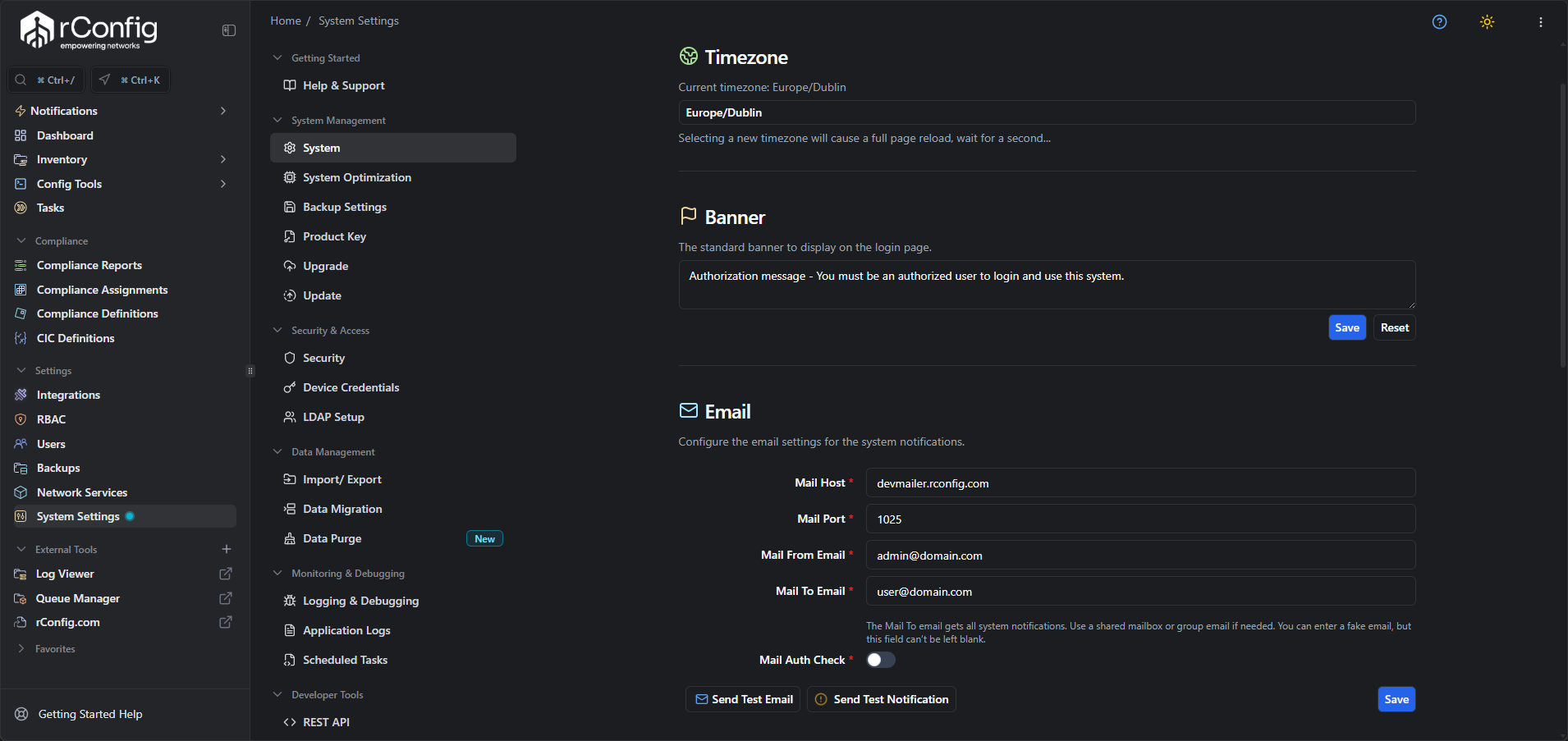
Section titled “System settings hub”The Settings section is a centralized hub for managing all system-wide configurations. It is organised into clear categories such as General, Network, Security, and Integrations. Browse the categories or use the search bar to find specific settings quickly.
Theme modes (light vs dark)
Section titled “Theme modes (light vs dark)”As of V8.0.0, rConfig V8 Core supports a dark theme only. Based on user feedback, we may add a light mode option in future. A light mode would provide a brighter interface that is easier on the eyes in well-lit environments.
What’s next
Section titled “What’s next”- Manage devices in rConfig V8 Core to start adding and organising the network equipment you back up.
- Edit configurations in the new config editor to view and work with stored device configurations.
- Review the centralized settings reference to understand the system-wide options available from the Settings hub.