

Upgrade rConfig V8 Core to V8 Pro
Upgrade rConfig V8 Core to V8 Pro
Section titled “Upgrade rConfig V8 Core to V8 Pro”After reading this page, you can move an existing rConfig V8 Core install onto the V8 Pro edition without losing your devices, configs, or backups. This is a cross-edition upgrade: V8 Pro is the commercial edition documented separately at docs.rconfig.com, and this page bridges you from Core to that edition.
When to use this
Section titled “When to use this”Use this guide when you already run rConfig V8 Core and want the additional features of V8 Pro, such as compliance policies, change management, and the wider integration set. The procedure installs V8 Pro alongside your existing Core data on the same server, then migrates your Core database and storage into it.
Prerequisites
Section titled “Prerequisites”Before you start, make sure you have:
- A valid V8 Pro license. Purchase one at rconfig.com/pricing if you do not already have one.
- A working rConfig V8 Core install. See Install rConfig V8 Core if you need to confirm your current setup.
- A full backup of your V8 Core database and storage folders. The first step below covers this, and System backups explains rConfig’s built-in backup options.
- Root or sudo access to the server, and the V8 Core
APP_KEYand database password to hand.
Back up rConfig V8 Core
Section titled “Back up rConfig V8 Core”- Dump the V8 Core database to a dated file.
mysqldump -u YOUR_DB_USER -p YOUR_DATABASE > /root/rconfig-v8-core-backup-$(date +%Y%m%d).sql- Archive the V8 Core application directory.
tar -czf /root/rconfig-v8-core-backup-$(date +%Y%m%d).tar.gz /var/www/html/rconfigUpdate your operating system
Section titled “Update your operating system”- Update and upgrade your OS packages. This may take a few minutes. Let both commands finish.
For RHEL / CentOS / Rocky / AlmaLinux:
yum -y updateyum -y upgradeFor Ubuntu / Debian:
apt-get updateapt-get upgrade -y- If you hit a MariaDB repository error during the update, remove the stale MariaDB repo file and re-run the update command above.
For RHEL / CentOS / Rocky / AlmaLinux:
rm -fr /etc/yum.repos.d/MariaDB*For Ubuntu / Debian:
rm -fr /etc/apt/sources.list.d/mariadb*
Run the V8 Pro installer
Section titled “Run the V8 Pro installer”-
On the same server as V8 Core, install V8 Pro by following the V8 Pro installation guide on docs.rconfig.com (Pro edition).
-
Open the UI once the installer finishes. The new V8 Pro UI loads with a blank default data set (no devices or configs yet). You migrate your Core data in the next steps.
Update the V8 Pro .env file
Section titled “Update the V8 Pro .env file”- Open the V8 Pro
.envfile.
vi /var/www/html/rconfig8/current/.env- Copy the values below from your V8 Core
.envinto the V8 Pro.env, commenting out the original Pro parameters. Take particular care withDB_PASSWORD.
#APP_KEY=base64:xxxxxxxxxxxxxxxxxV8PROKEYxxxxxxxxxxxxxxxxxxx%253DAPP_KEY=base64:xxxxxxxxxxxxxxxV8COREKEYxxxxxxxxxxxxxxxxxxxxxxxx=
#APP_URL=https://rconfig.yourdomain.comAPP_URL=https://rconfig.yourdomain.com
#DB_DATABASE=rconfig456DB_DATABASE=rconfig
#DB_USERNAME=rconfig_userDB_USERNAME=root
#DB_PASSWORD=V8ProPasswordDB_PASSWORD=xxxxxxxxxxxxxxxV8COREDBPASSxxxxxxxxxxxxxxxxxxxxxxxx
#DB_HOST=localhostDB_HOST=localhostOrOtherHost
#DB_PORT=3306DB_PORT=3306Migrate the database
Section titled “Migrate the database”- Clear the application state and run the migrations against your V8 Core database. You should see several tables created in the output.
cd /var/www/html/rconfig8/currentphp artisan rconfig:clear-allphp artisan migrate --forceCopy the V8 Core backup files to V8 Pro
Section titled “Copy the V8 Core backup files to V8 Pro”- Copy the storage contents from V8 Core into V8 Pro so all your existing backups are available.
yes | cp -R /var/www/html/rconfig/storage/* /var/www/html/rconfig8/current/storage/Clear the application cache
Section titled “Clear the application cache”- Clear the cache so the running instance uses the V8 Pro codebase.
cd /var/www/html/rconfig8/currentphp artisan rconfig:clear-allVerify the backup storage directory and permissions
Section titled “Verify the backup storage directory and permissions”- Create the backup storage directory, set its permissions, and clear the cache.
For RHEL / CentOS / Rocky / AlmaLinux:
cd /var/www/html/rconfig8/currentmkdir -p storage/app/rconfig/backupschmod 0755 storage/app/rconfig/backupschown -R apache:apache storage bootstrap/cachephp artisan rconfig:clear-allFor Ubuntu / Debian:
cd /var/www/html/rconfig8/currentmkdir -p storage/app/rconfig/backupschmod 0755 storage/app/rconfig/backupschown -R www-data:www-data storage bootstrap/cachephp artisan rconfig:clear-allFix OAuth key permissions
Section titled “Fix OAuth key permissions”- Set the correct permissions and ownership on the OAuth authentication keys.
For RHEL / CentOS / Rocky / AlmaLinux:
cd /var/www/html/rconfig8/currentchmod 600 storage/oauth-private.keychmod 600 storage/oauth-public.keychown apache:apache storage/oauth-*.keyFor Ubuntu / Debian:
cd /var/www/html/rconfig8/currentchmod 600 storage/oauth-private.keychmod 600 storage/oauth-public.keychown www-data:www-data storage/oauth-*.keyRestart services
Section titled “Restart services”- Restart Apache, Supervisor, and PHP-FPM to apply all changes.
For RHEL / CentOS / Rocky / AlmaLinux:
systemctl restart httpdsystemctl restart supervisordsystemctl restart php-fpmFor Ubuntu / Debian:
systemctl restart apache2systemctl restart supervisorsystemctl restart php8.4-fpmAccess V8 Pro
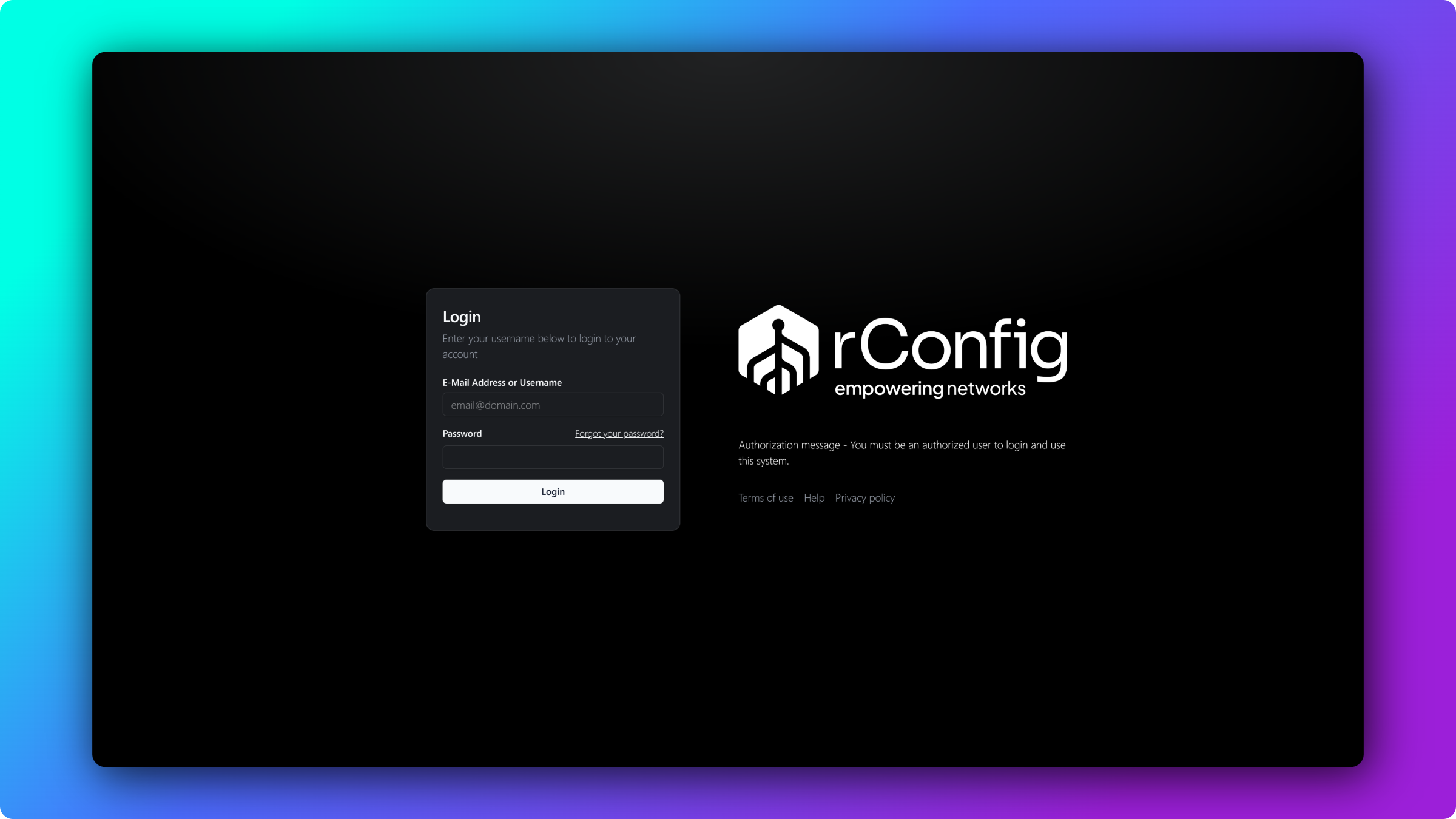
Section titled “Access V8 Pro”- Open your rConfig URL in a browser, then press CTRL+SHIFT+R to hard refresh and clear the old assets.
Common gotchas
Section titled “Common gotchas”What’s next
Section titled “What’s next”- Explore the V8 Pro documentation (Pro edition) to set up the features your new license unlocks.
- Review V8 Core system backups so your migrated data stays protected.
- Manage your devices and configs to confirm everything migrated as expected.