

SSO with Microsoft Entra ID in rConfig V8 Core
After reading this page, I can register an application in Microsoft Entra ID (formerly Azure AD), wire its client credentials into rConfig V8 Core, and approve the first users who sign in through Microsoft SSO. The result is a Sign in with Microsoft button on the rConfig login page backed by your Entra tenant.
When to use this
Section titled “When to use this”Use this page when your organisation authenticates with Microsoft Entra ID and you want users to sign in to rConfig V8 Core with their existing Microsoft work or school accounts instead of local rConfig passwords. It suits single-tenant and multi-tenant Entra setups where you control the app registration.
Prerequisites
Section titled “Prerequisites”- Administrator access to the Microsoft Azure portal with permission to create app registrations
- Administrator access to rConfig V8 Core, including shell access to edit the
.envfile - The rConfig server reachable over HTTPS with a valid domain name (see SSL setup)
- A working understanding of how rConfig handles SSO sign-in, covered in the SSO overview
Configure Microsoft Azure
Section titled “Configure Microsoft Azure”Step 1: Create the app registration
Section titled “Step 1: Create the app registration”Navigate to Azure Portal > App registrations and click New registration.
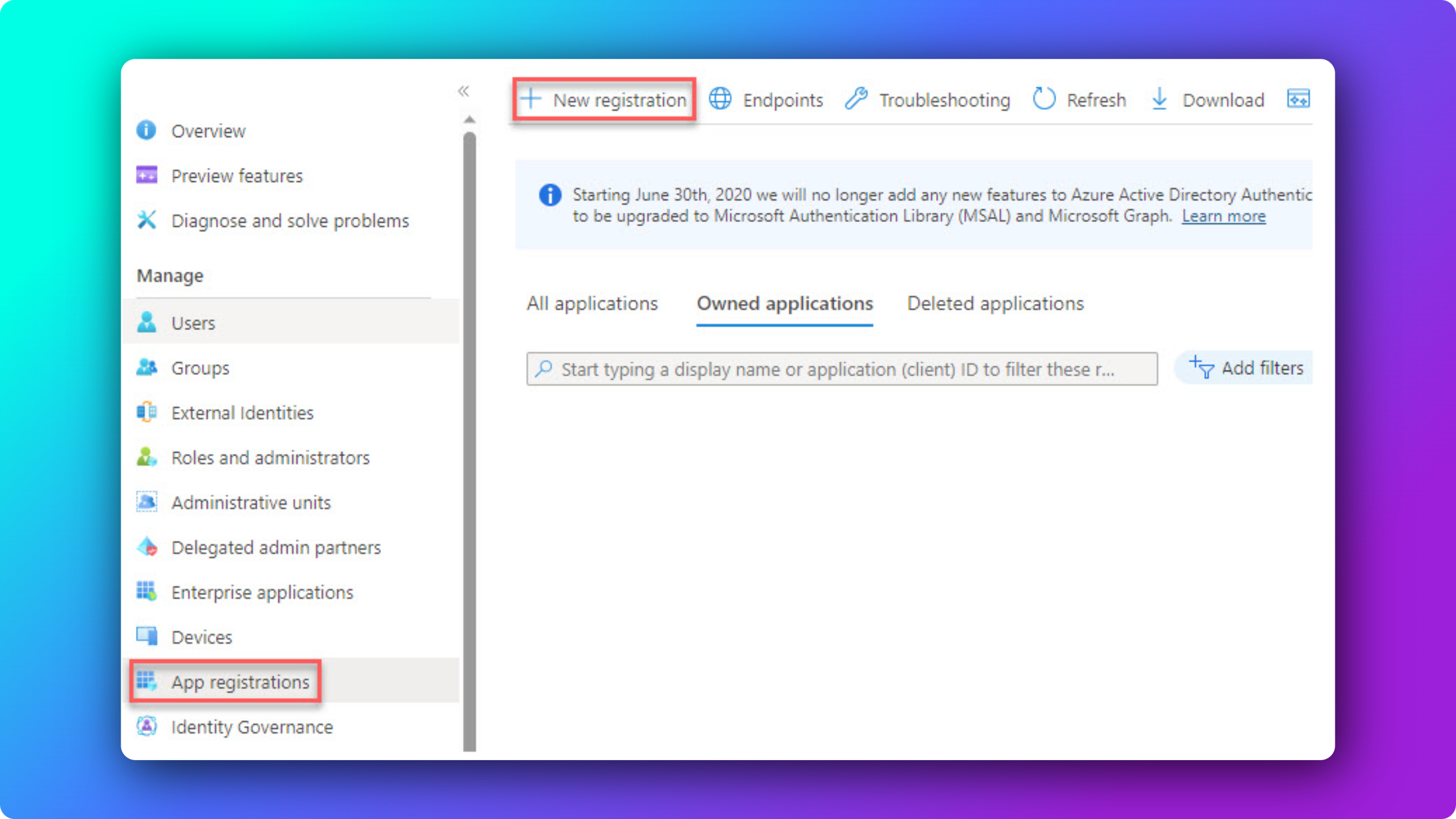
Complete the registration form:
- Name: a descriptive name such as
rConfig V8 Core - Supported account types: select the option that matches your organisation (single tenant or multi-tenant)
- Redirect URI: select Web and enter your callback URL:
https://your-rconfig-domain.com/auth/callback/microsoft
Click Register to create the application.
Step 2: Note the application details
Section titled “Step 2: Note the application details”On the application Overview page, copy these two values. You will paste them into the rConfig .env file later.
- Application (client) ID
- Directory (tenant) ID
Step 3: Create a client secret
Section titled “Step 3: Create a client secret”-
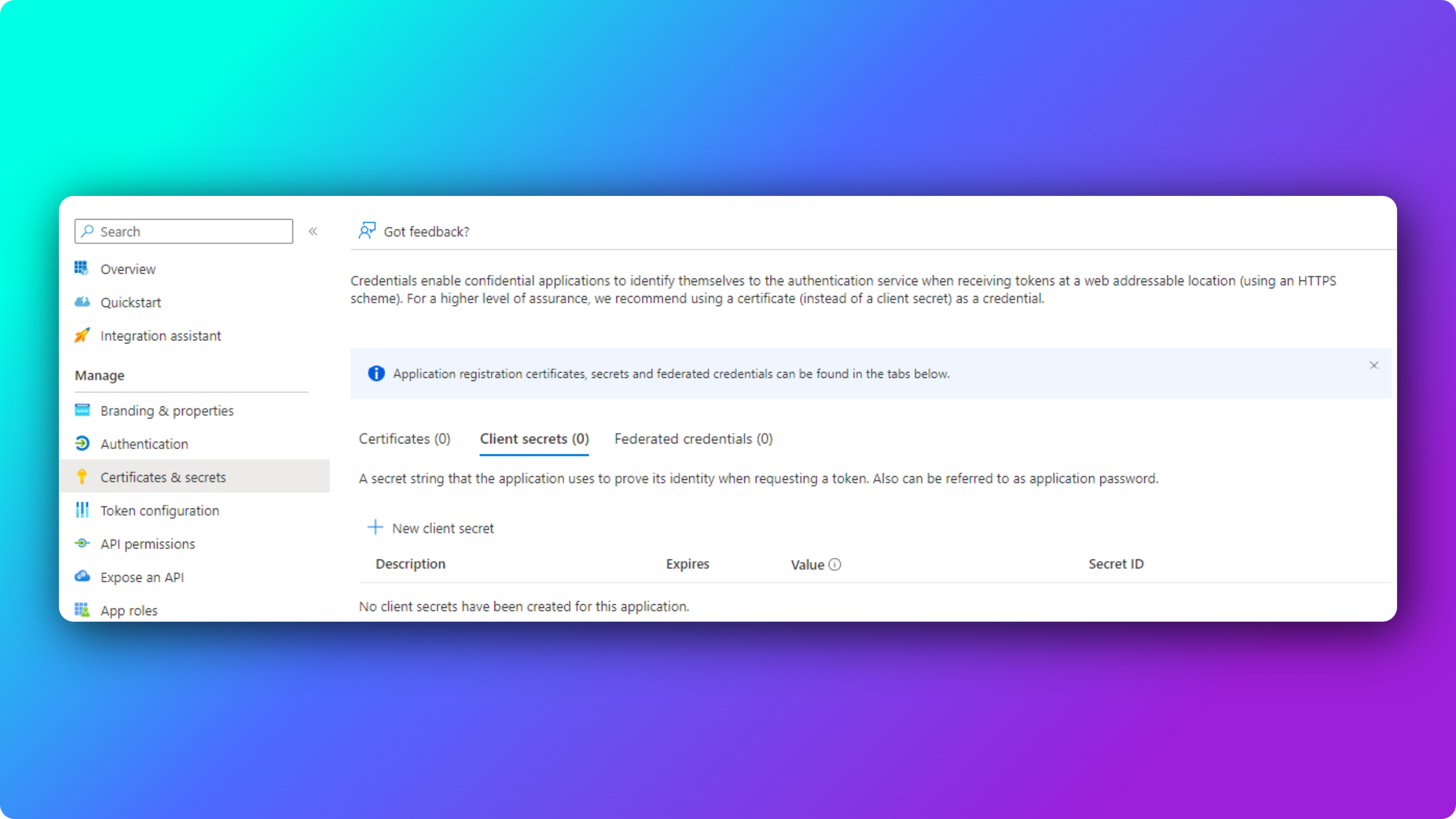
Open Certificates & secrets in the application’s left menu.
-
Click New client secret.
-
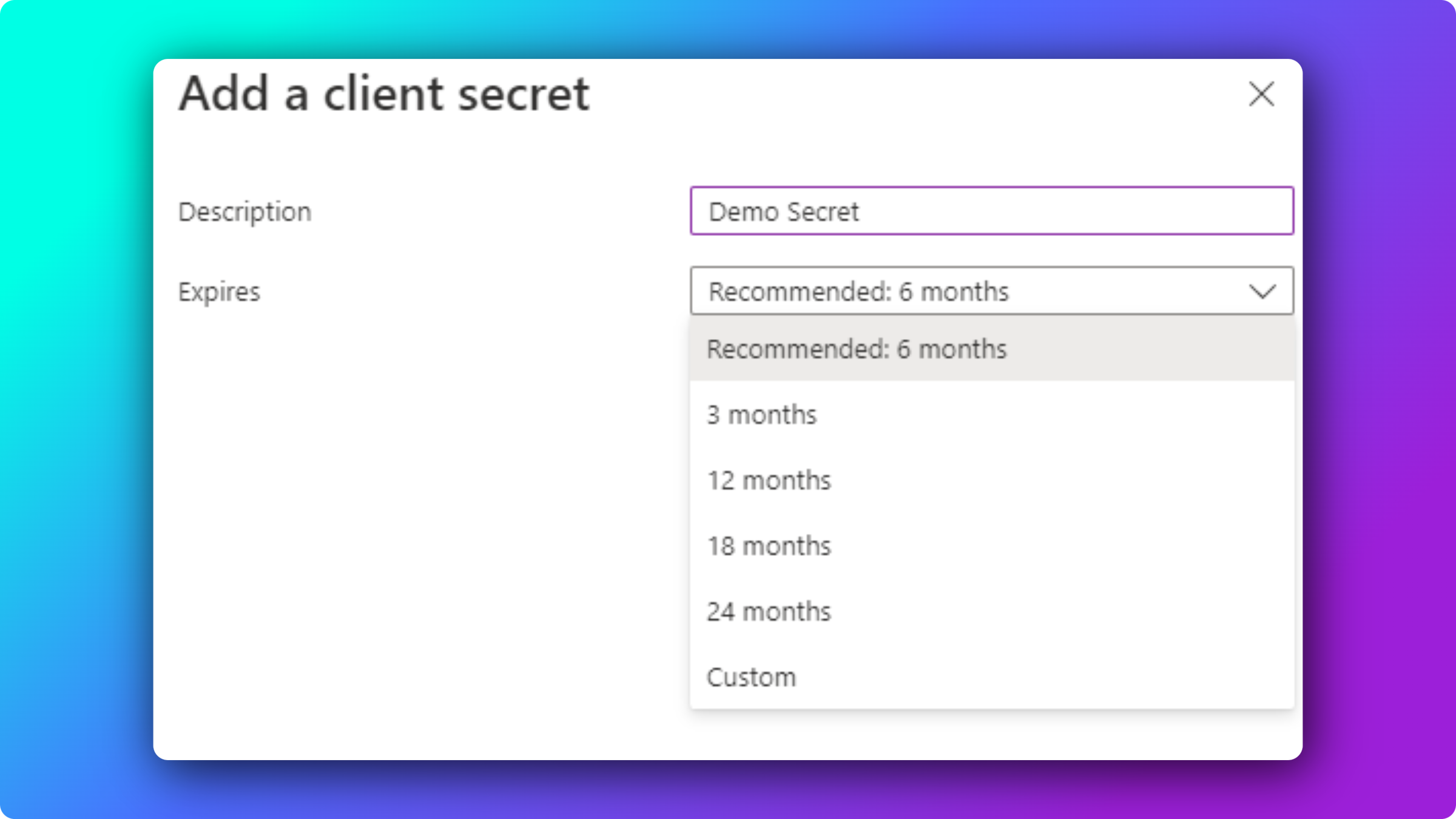
Add a description such as
rConfig V8 Core secret. -
Select an expiration period that fits your secret-rotation policy.
-
Click Add.
-
Copy the secret Value immediately. Entra hides it once you leave the page and you cannot view it again.
Configure rConfig V8 Core
Section titled “Configure rConfig V8 Core”Step 1: Edit the environment file
Section titled “Step 1: Edit the environment file”Open the rConfig .env file on the server:
vim /var/www/html/rconfig/.envStep 2: Add the Microsoft SSO settings
Section titled “Step 2: Add the Microsoft SSO settings”Add or update the following lines with the values from your Entra app registration:
MICROSOFT_CLIENT_ID=your_application_client_idMICROSOFT_CLIENT_SECRET=your_client_secret_valueMICROSOFT_REDIRECT_URI=https://your-rconfig-domain.com/auth/callback/microsoftMICROSOFT_TENANT_ID=your_tenant_idThe parameters map to the Entra values as follows:
.env key | Value to use |
|---|---|
MICROSOFT_CLIENT_ID | Application (client) ID from the Overview page |
MICROSOFT_CLIENT_SECRET | Secret Value created in Step 3 |
MICROSOFT_REDIRECT_URI | Must match the redirect URI configured in Entra exactly |
MICROSOFT_TENANT_ID | Directory (tenant) ID, required for single-tenant configurations |
Step 3: Clear the application cache
Section titled “Step 3: Clear the application cache”Save the file, then clear the rConfig cache so the new settings take effect:
php /var/www/html/rconfig/artisan rconfig:clear-allStep 4: Verify the login button
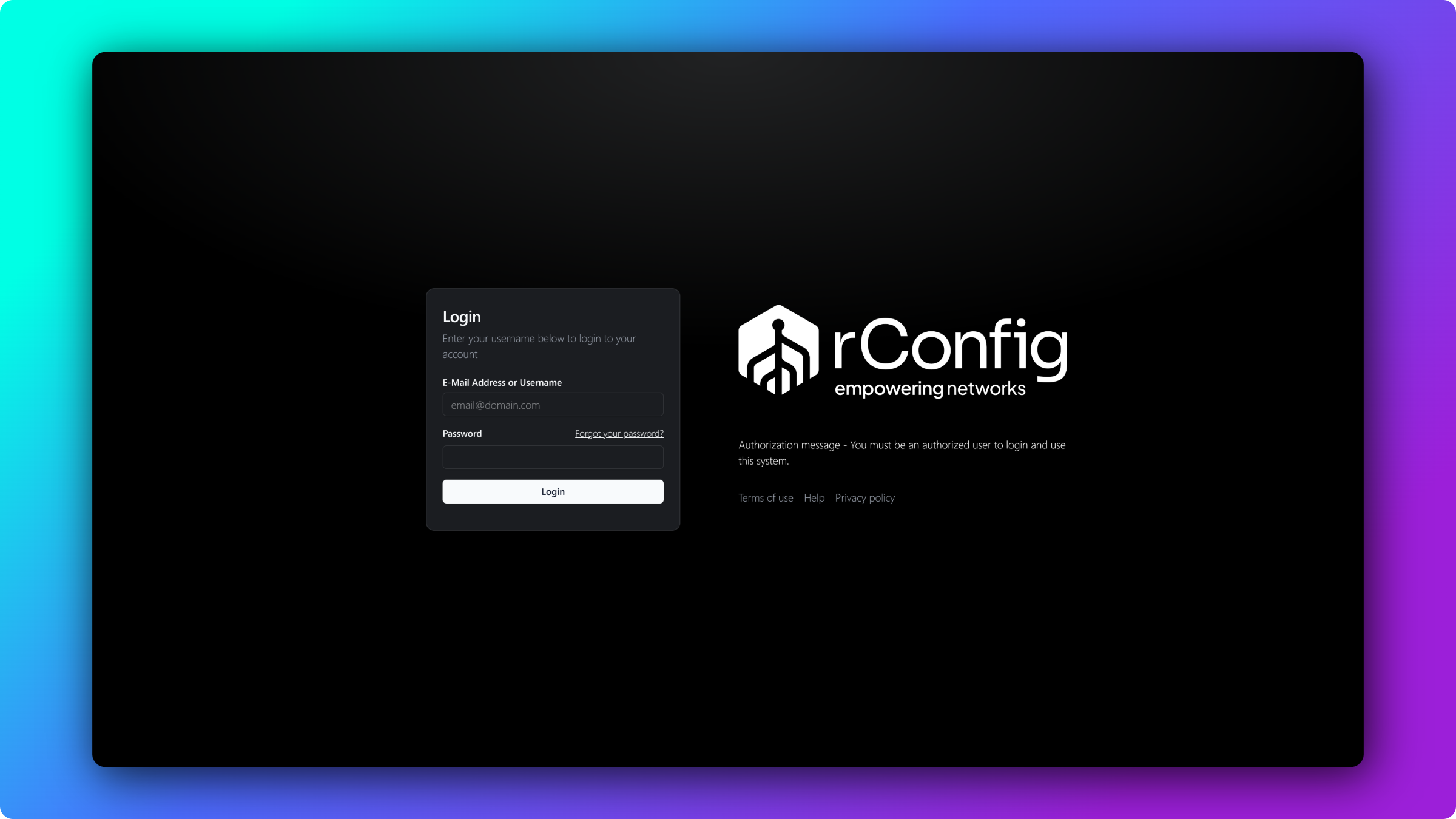
Section titled “Step 4: Verify the login button”Reload the rConfig login page. A Sign in with Microsoft button now appears below the standard login form.
How does first-time user approval work?
Section titled “How does first-time user approval work?”rConfig does not grant access automatically after a successful Microsoft sign-in. The first time a user signs in through SSO:
- The user authenticates successfully with Microsoft.
- rConfig creates the user account with SSO access disabled.
- The user sees a message indicating that an administrator must approve the account.
To approve a pending SSO user:
- Log in to rConfig as an administrator.
- Navigate to the Users section.
- Locate the new SSO user.
- Enable SSO access for the user.
- Assign an appropriate role and permissions.
Once approved, the user can sign in through Microsoft and reach rConfig. Manage roles and approvals on the user management page.
Why isn’t SSO working?
Section titled “Why isn’t SSO working?”If the Sign in with Microsoft button does not appear:
- Verify all four
MICROSOFT_environment variables are set and spelled correctly. - Confirm the cache was cleared with
php artisan rconfig:clear-all. - Check the Apache error logs for configuration errors.
If authentication fails after clicking the button:
- Confirm the redirect URI matches exactly between Entra and rConfig.
- Confirm the client secret has not expired in Entra.
- Confirm the tenant ID is correct for single-tenant applications.
If users authenticate but cannot reach rConfig:
- Confirm an administrator has enabled SSO access for the user in the Users section.
- Confirm the user has an assigned role.
- Confirm the user account status is active.
What’s next
Section titled “What’s next”- SSO overview for rConfig V8 Core explains how the SSO providers fit together and which login flow each one uses.
- User management in rConfig V8 Core covers approving SSO accounts, assigning roles, and managing permissions.
- SSL setup for rConfig V8 Core ensures your server serves the HTTPS callback URL that Entra requires.