

The configuration editor in rConfig V8 Core
After reading this page, I can open a device configuration in the rConfig V8 Core code editor, search and copy its contents, and compare two configuration versions side by side to see exactly what changed.
rConfig V8 Core embeds the Monaco code editor, the same editor that powers Visual Studio Code, directly into the configuration management workflow. Configurations open in a browser-based editor with syntax highlighting, line numbers, fast search, and a side-by-side diff view, so you read and compare device configs without exporting them to a separate tool.
When to use the config editor
Section titled “When to use the config editor”Use the config editor whenever you need to read a captured device configuration, find a specific line or value across a large file, or compare two versions to confirm what changed during a maintenance window. It is also where you author and refine compliance policy definitions.
Prerequisites
Section titled “Prerequisites”- A device with at least one captured configuration. See Configuration backups in rConfig V8 Core.
- An account with permission to view the device and its configurations.
Universal editor features
Section titled “Universal editor features”Every editor variant in rConfig V8 Core shares the same core capabilities:
- Dark mode: toggle between light and dark themes to match your environment.
- Line numbers: reference specific configuration lines during troubleshooting or team collaboration.
- Minimap: scan a high-level overview of large configuration files and jump to any section.
- Syntax highlighting: configuration keywords and structure are colour-coded for readability.
Keyboard shortcuts
Section titled “Keyboard shortcuts”The editor uses the standard Visual Studio Code shortcuts:
Ctrl+D(orCmd+Don Mac): select the word at the cursor, or the next occurrence.Ctrl+F(orCmd+F): open the find dialog.Ctrl+H(orCmd+H): find and replace.Ctrl+L: select the entire line.Alt+Up/Alt+Down: move the current line up or down.
For the full list, see the Visual Studio Code keyboard reference.
Config editor
Section titled “Config editor”The config editor is the main interface for viewing and analysing network device configurations. The top toolbar provides quick actions for working with the file you have open.
Toolbar functions
Section titled “Toolbar functions”- Copy Config: copy the entire configuration to your clipboard for documentation or sharing.
- Copy Path: copy the file path for use in scripts, automation, or audit trails.
- Download: save the configuration locally for offline analysis or backup.
- Search (
Ctrl+F): find any string across the configuration, however large the file. - Full Screen: expand the editor to fill the window and focus on the configuration.
Open a configuration in the editor
Section titled “Open a configuration in the editor”- Go to Dashboard → Inventory → Devices.
- Select the device whose configuration you want to view.
- Open the Configurations tab.
- Select a config from the list to open it in the editor.
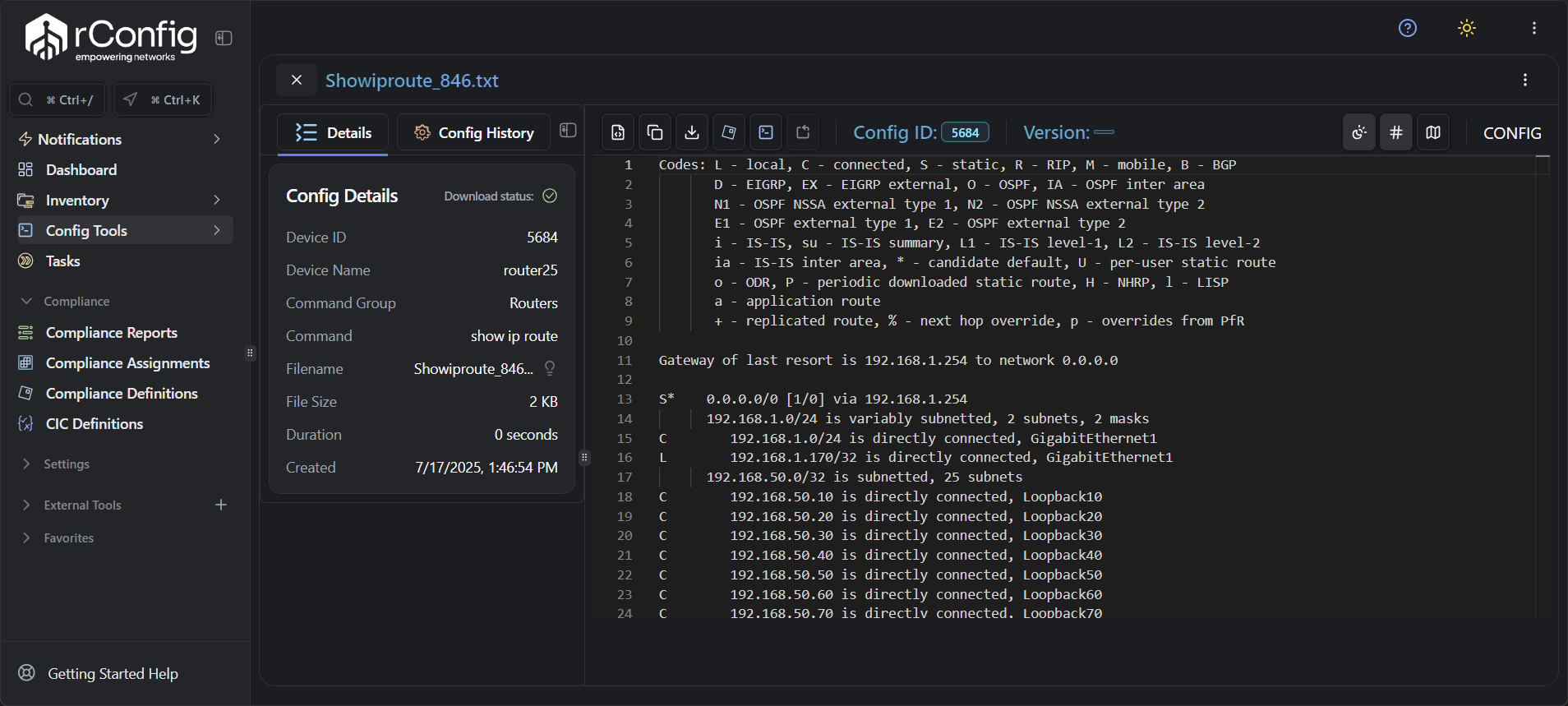 Config editor with full toolbar access.
Compare editor
Section titled “Compare editor”The compare editor places two configuration versions side by side and highlights the differences, which makes configuration drift detection, change validation, and troubleshooting straightforward. The diff view shows:
- Lines that were added (green).
- Lines that were removed (red).
- Lines that were modified (yellow).
Enhanced toolbar functions
Section titled “Enhanced toolbar functions”The compare editor includes all standard config editor functions, plus per-pane controls:
- Copy Left/Right: copy either side of the comparison independently.
- Download Left/Right: save either configuration version on its own.
- Find Left/Right (
Ctrl+F): search within either pane independently. - Full Screen: expand the comparison to fill the window.
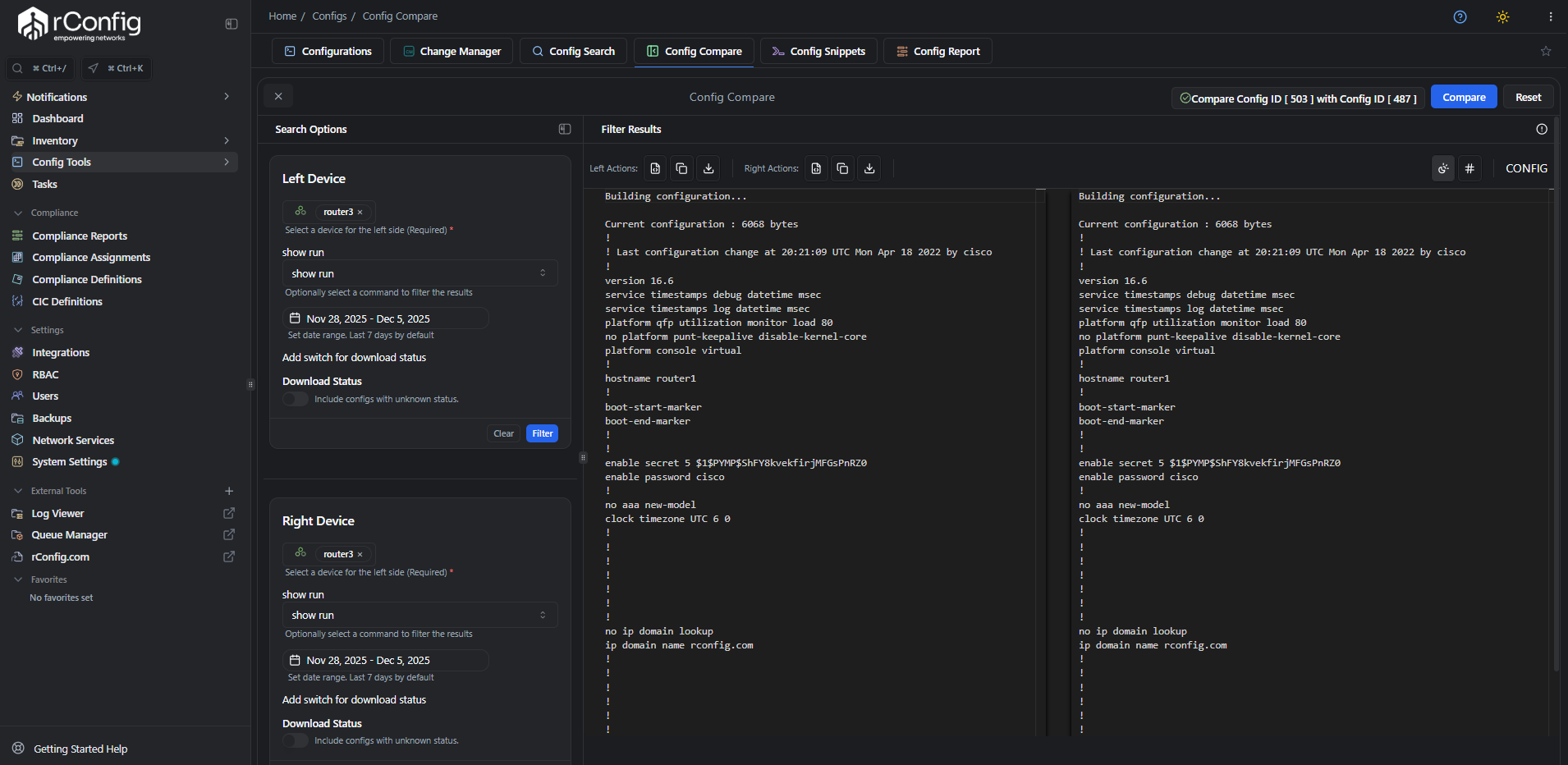 Compare editor showing a side-by-side configuration diff.
For a deeper look at comparing configurations, see Configuration diffs in rConfig V8 Core.
Policy definition editor
Section titled “Policy definition editor”The policy definition editor is tailored for creating and editing compliance policies and configuration templates. Use it to write regex patterns, define compliance rules, and structure policy logic with full editor tooling.
Streamlined toolbar
Section titled “Streamlined toolbar”- Copy: copy a policy definition for reuse across multiple policy assignments.
- Download: export a policy definition for version control or sharing.
- Full Screen: expand the editor to focus on complex policy logic.
 Policy definition editor for compliance rule creation.